Table of Contents
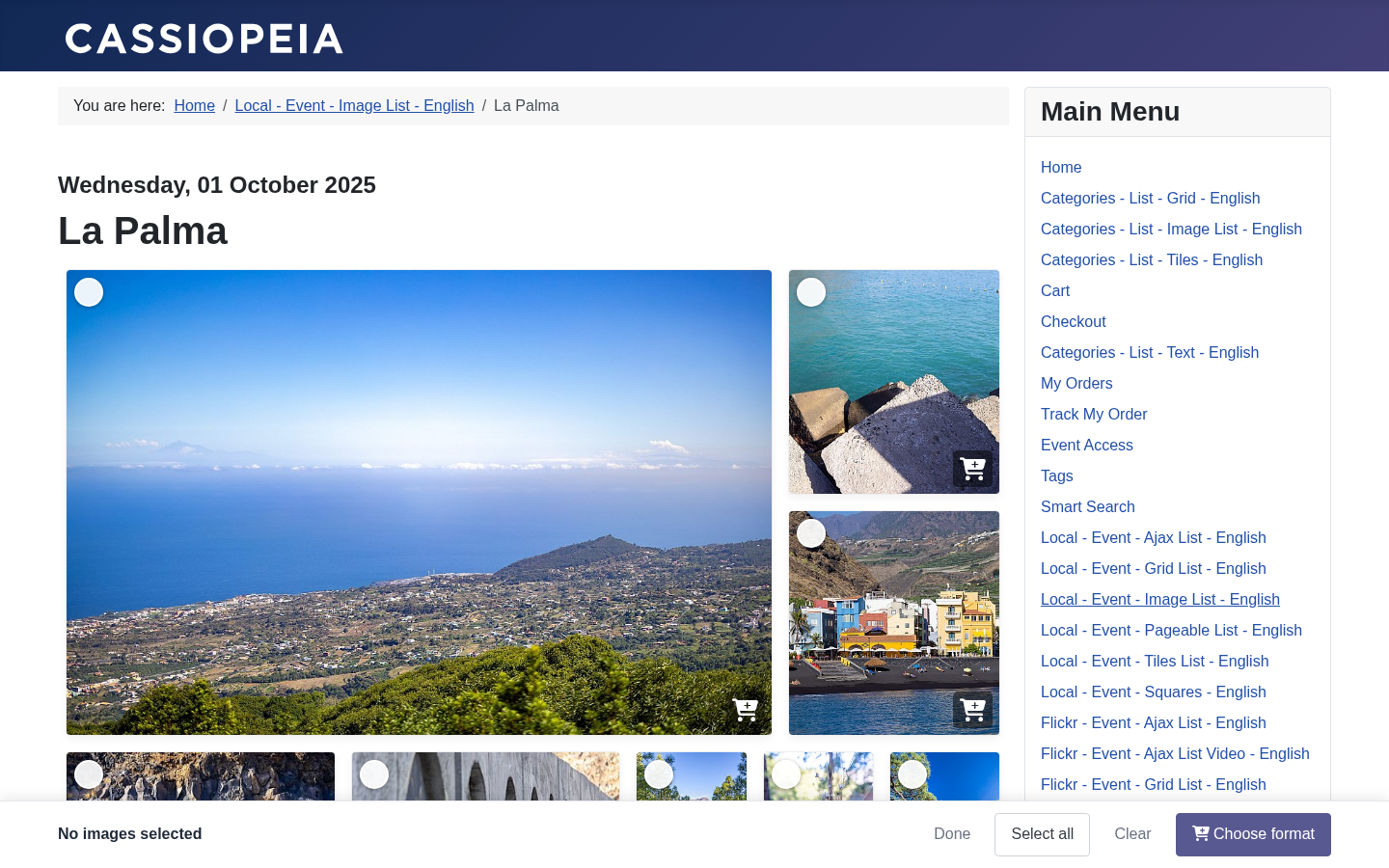
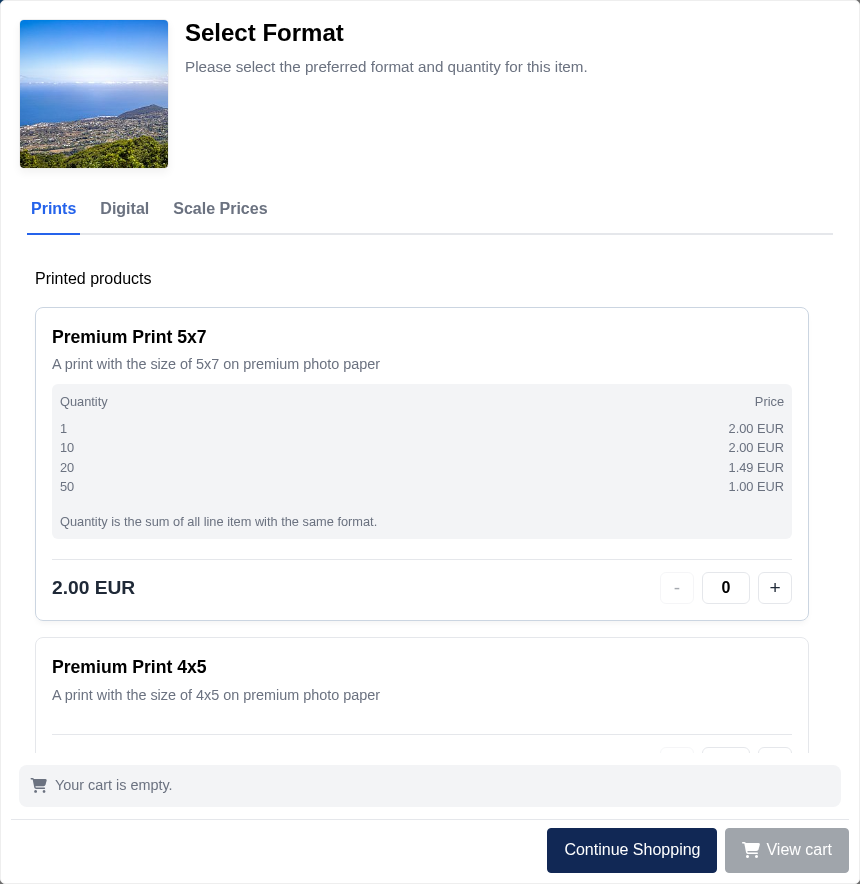
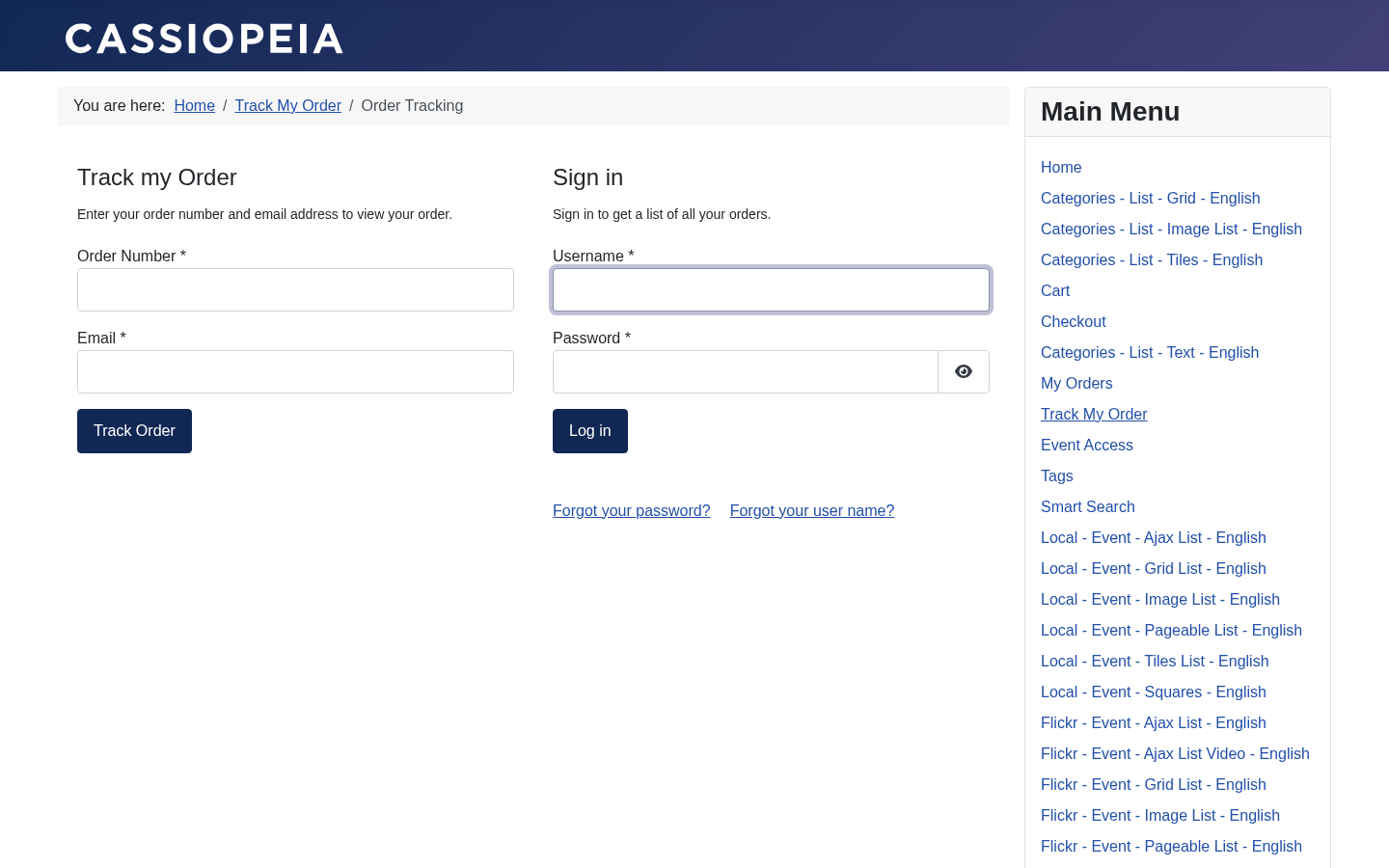
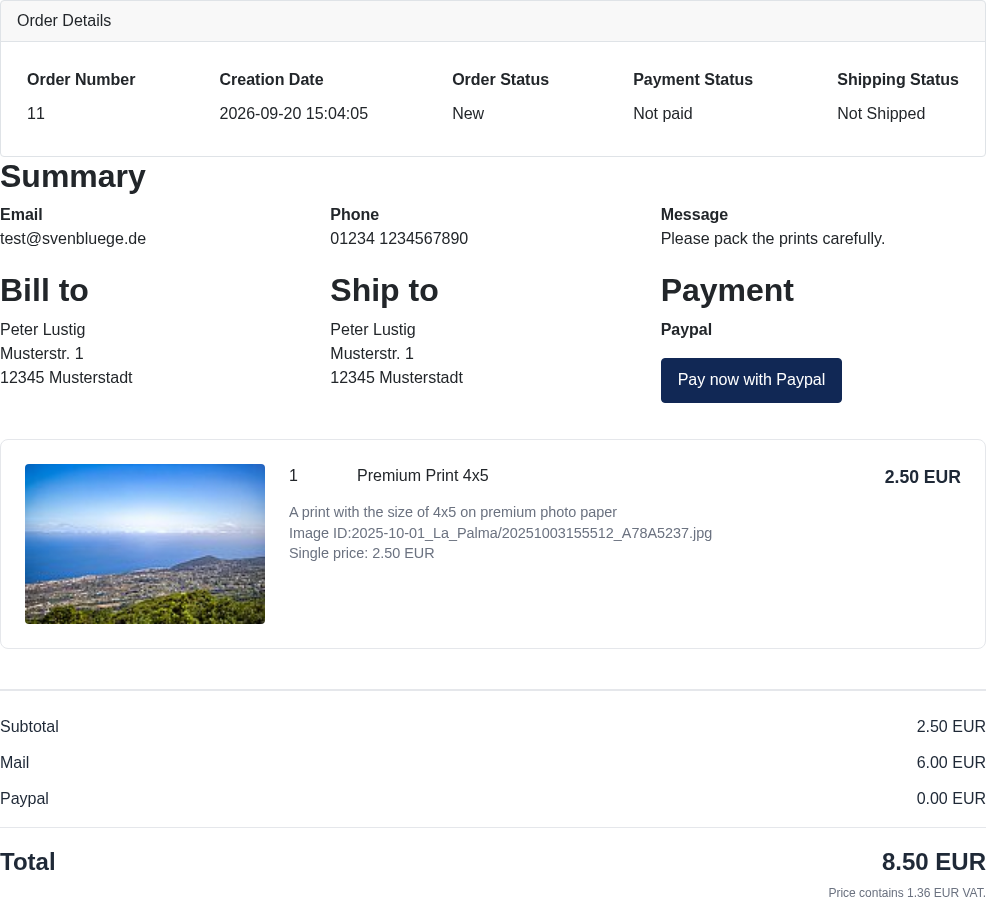
The cart&checkout feature allows you to sell images using your Joomla! gallery. Images of an event can be sold with different product sets. Sell the wedding pictures with high prices and premium quality products but give away your thanksgiving images for free. Payment and shipping options are configurable for your needs. After placing an order, customers can easily track the status of the order using your website.
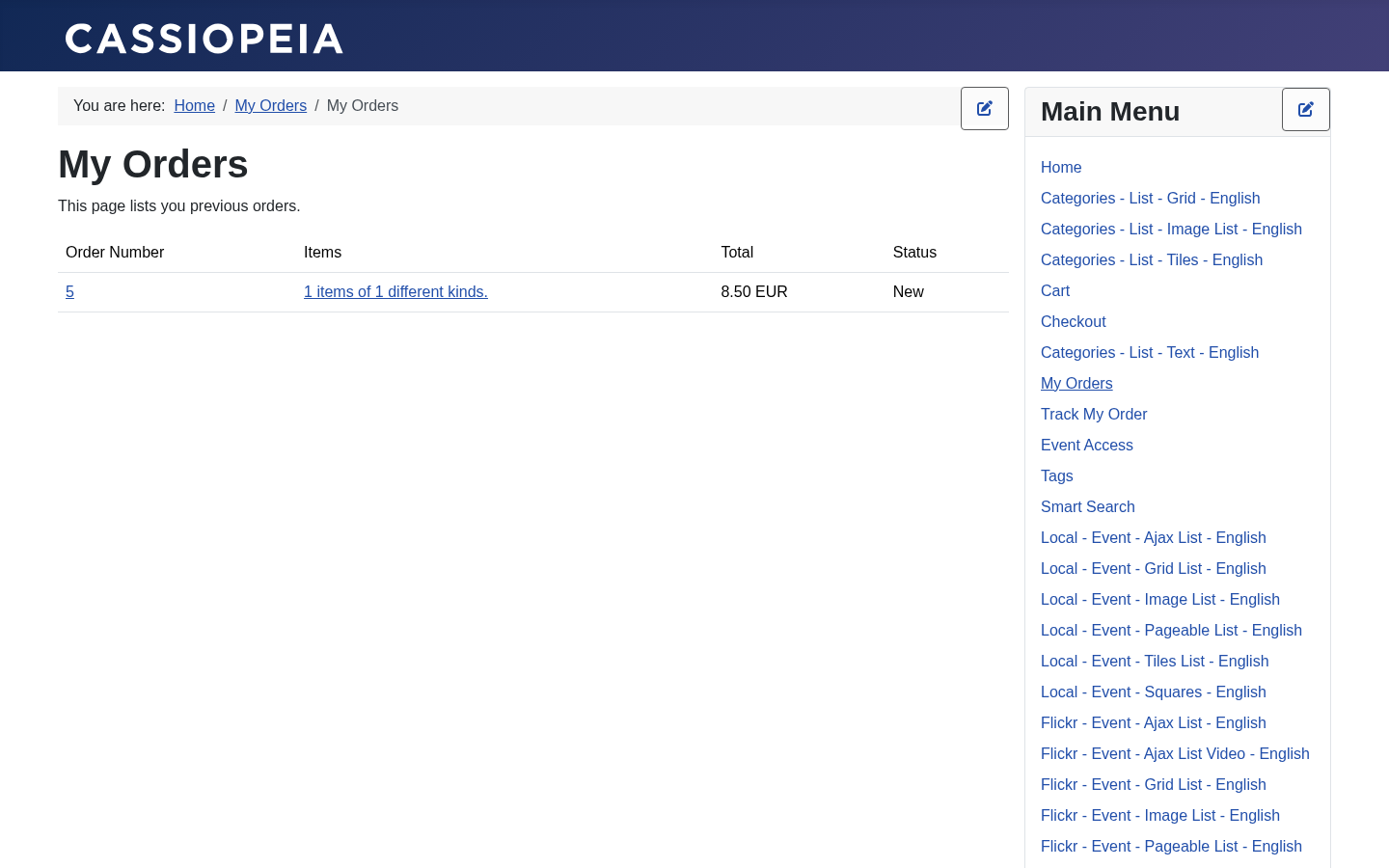
Registered users can log in during the checkout. If they do, two things happen. The order is bound to the user’s account. This way it is very easy for a customer to find all orders using the tracking page. On the other hand they do not need to enter address data again. They are saved to their profile and loaded from there for the next order. Every update of the address data will be kept for the next order.
The pages a buyer passes on the way from an event to an order:
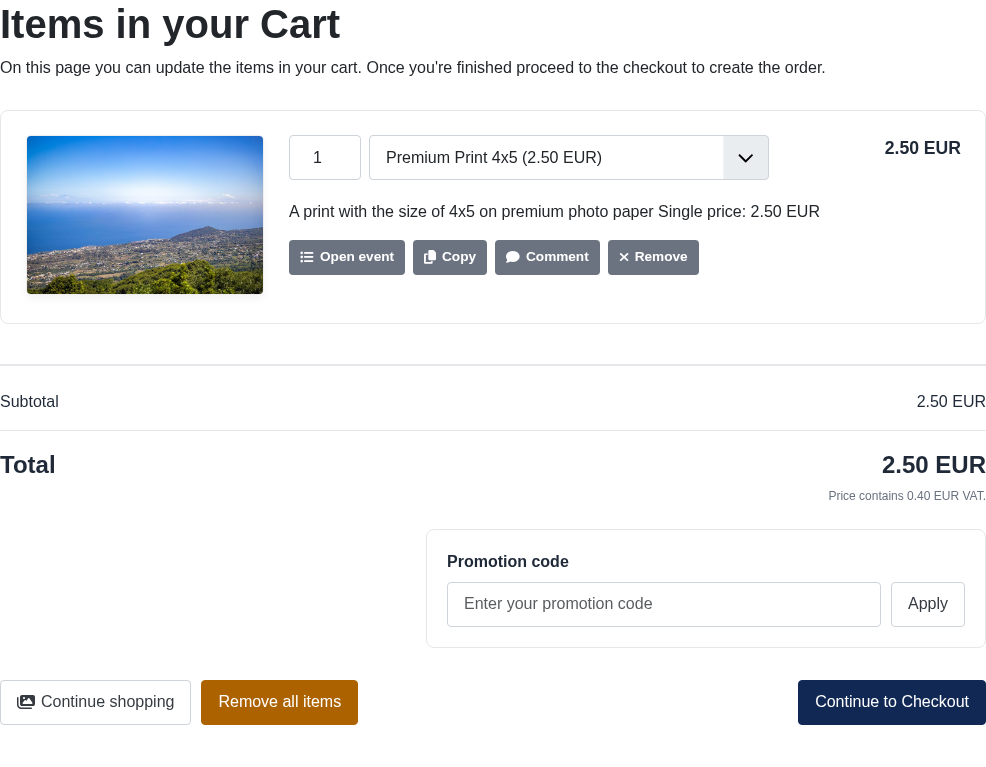
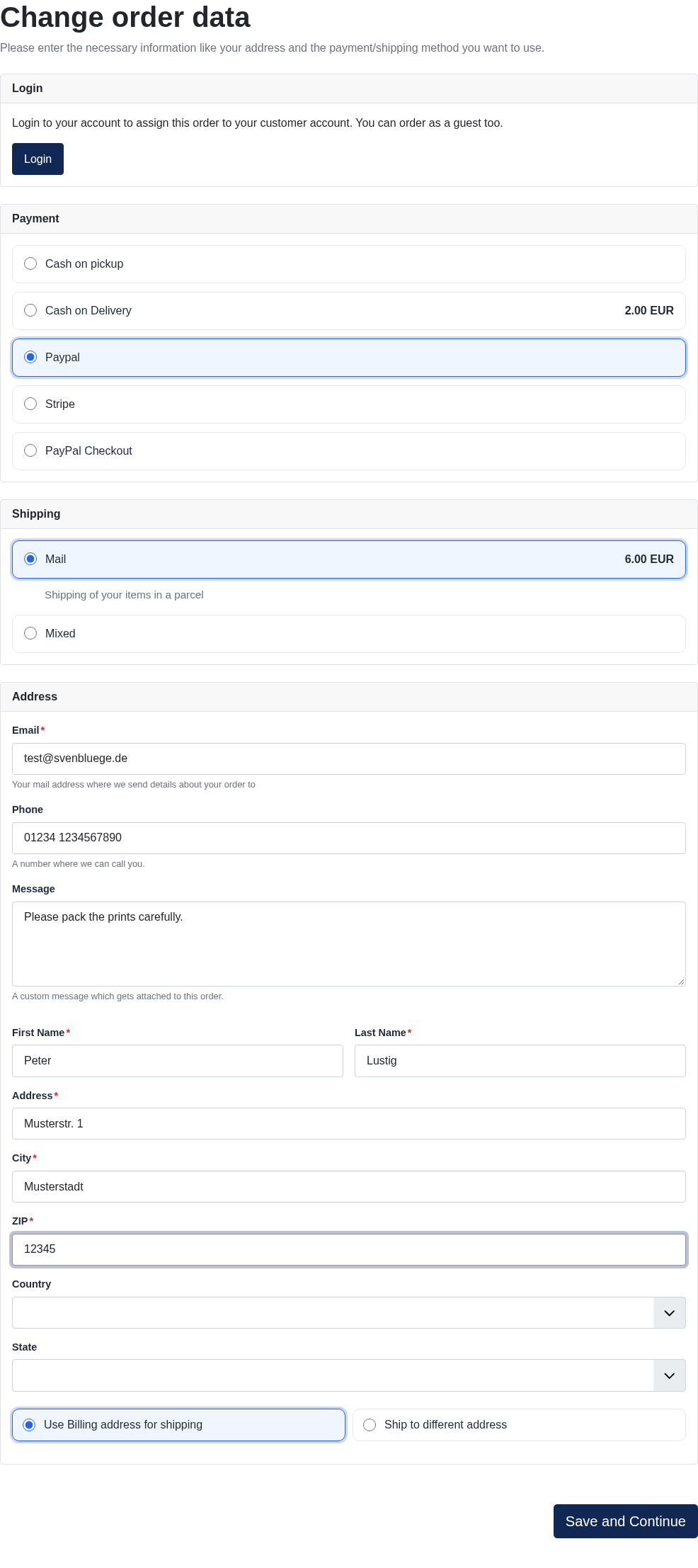
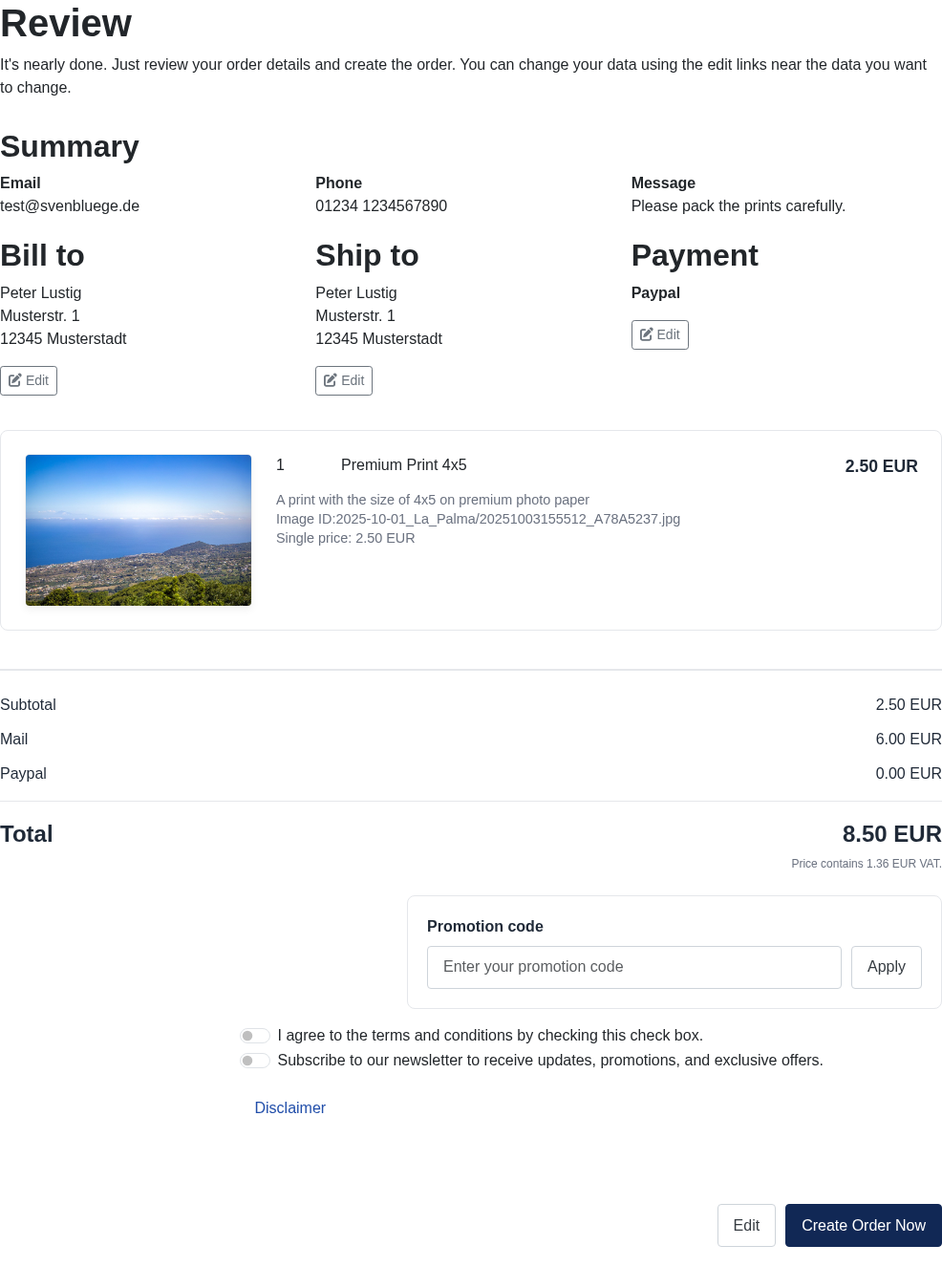
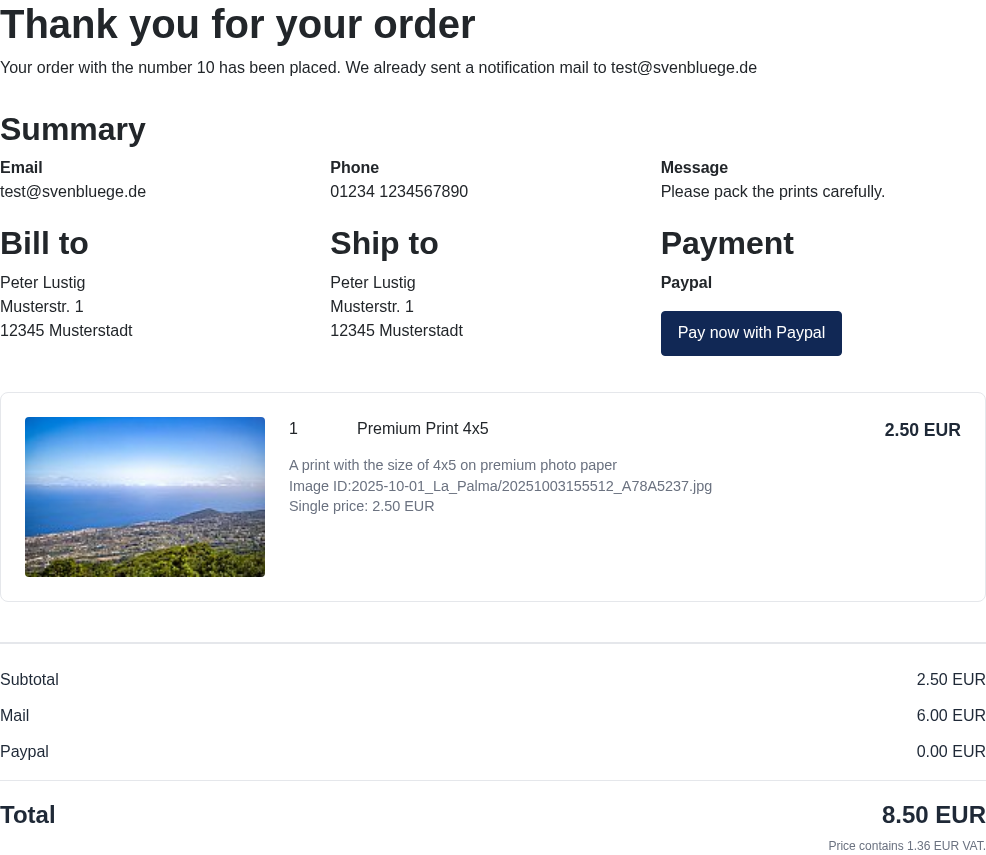
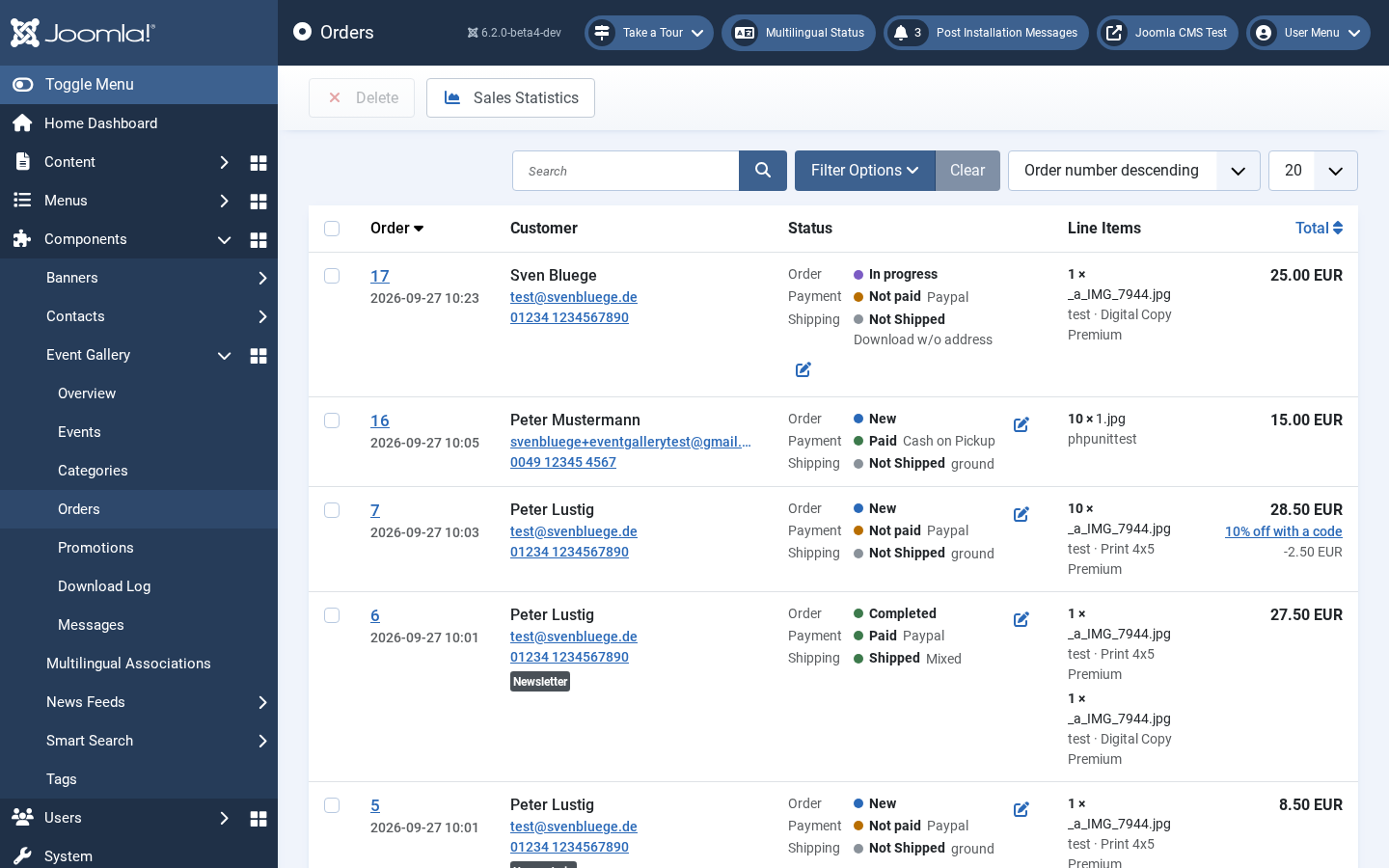
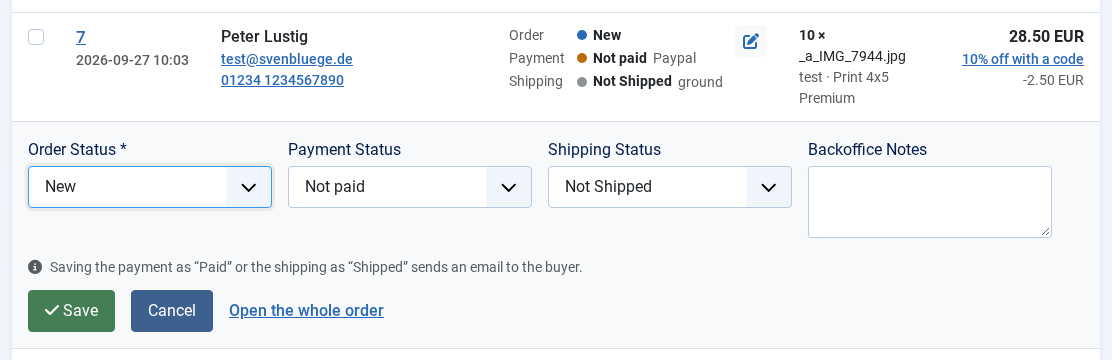
Once the first order has been created on your site, it will appear here. Each row shows the order number and date, the customer, the order, payment and shipping status, the first images of the order and the total. Click the order number to open the order. The search finds an order by its number, by the name, company or email address of the buyer, by the message of the buyer, or by the name of an event or file in it. Use the filter options to display only orders matching a specific status. Keep in mind that by creating your own order statuses you can model your own order status flow. To change the order, payment or shipping status or the backoffice notes of an order without opening it, click the pencil next to its statuses: a row opens below the order. Save stores the change and shows the new statuses in the list. Setting the payment to Paid or the shipping to Shipped sends an email to the buyer, just as it does on the order page.