The upload page puts files straight into one event. It exists for events whose images are stored on your server or in an S3 storage; events which show images from Flickr or Google Photos take no files. You reach it with the upload button of an event on → , from the edit page of the event and from its file list. Users who may edit Event Gallery also find a button on the event page of the front end, which leads to the same page there.
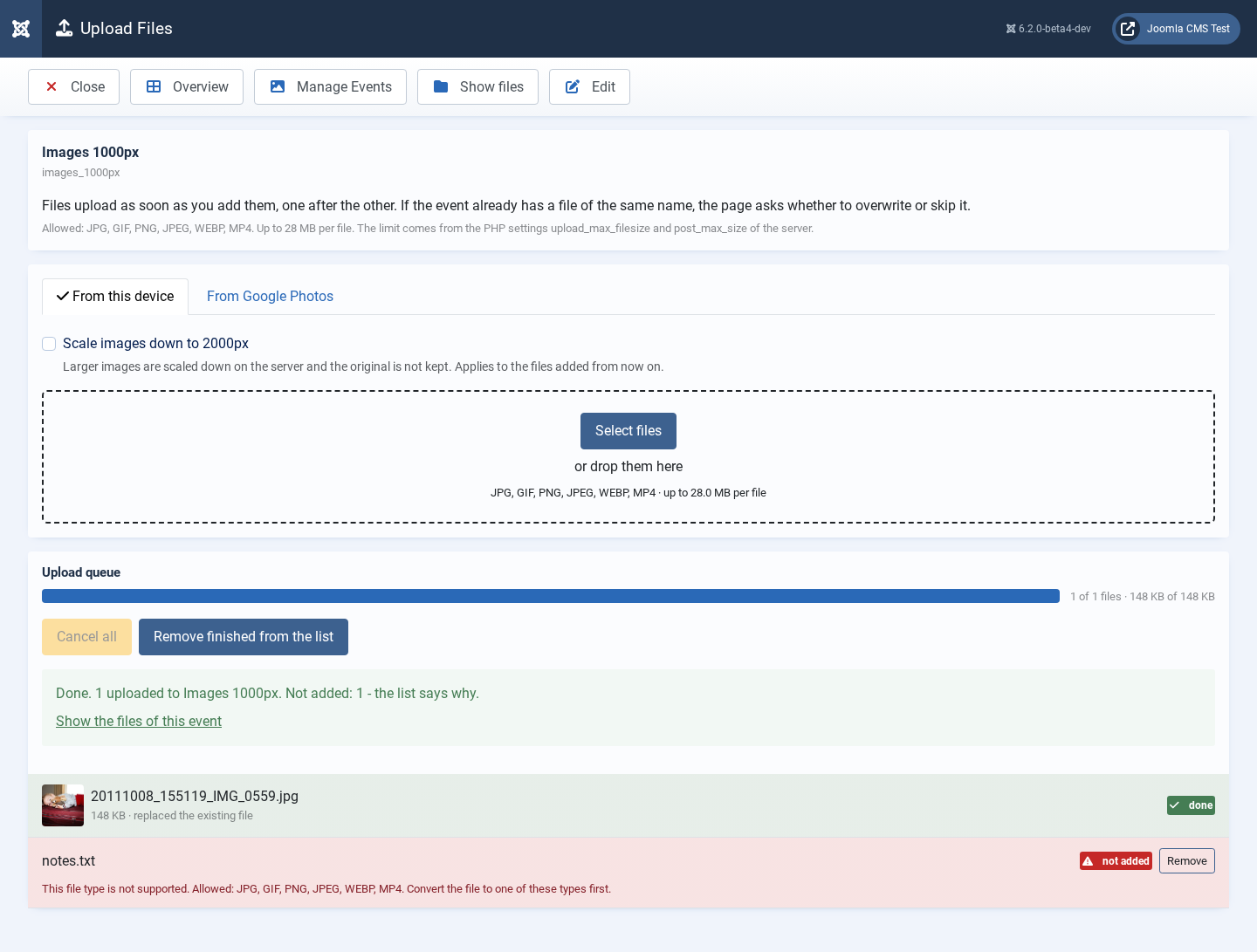
The page names the event, the file types it takes and the largest file your server accepts.
That limit is not an option of Event Gallery: it is the smaller one of the PHP settings upload_max_filesize and post_max_size, so ask your host if it is too low for your images.
A server which sets no limit is not given one.
Select the files with , or drop them onto the page. They upload as soon as they are added, one after the other, and you can add more while the upload runs. Every file has a row of its own which says how far it is - waiting, uploading, processing on the server, done - and a bar above the list shows the whole run in files and megabytes. A file the page does not send - the wrong type, larger than the limit, a folder - is listed as not added with the reason; a file the server refuses is listed as failed with the reason, and sends it again. stops a file which is still being sent; a file the server is already processing cannot be stopped any more. stops the run and keeps the waiting files in the list, so can send them later.
If the event already has a file of the same name, the file waits in its row with and , and the box above the list offers and ; the other files carry on meanwhile. If the server stops accepting the files - your login expired, or the connection is gone - the page pauses instead of failing every file in turn, says why, and offers ; after a new login in another tab, picks up a fresh security token from the page and carries on where it stopped. The browser warns you before you leave the page while files are still waiting or uploading. When the run is over, a summary says how many files were uploaded, failed, skipped or not added, and links to the files of the event (in the front end: back to the event).
If you switch on Scale images down to …px, images larger than the size from the image options are scaled down on the server, and the original is not kept; the setting applies to the files you add from then on. A list of more than 60 files shows the files at work, the questions, the first failed and waiting files and the last finished ones, and counts the rest; opens the whole list.
The main menu is hidden while the page is open. The toolbar takes you back to the overview, to the list of events, to the files of the event and to its edit page.