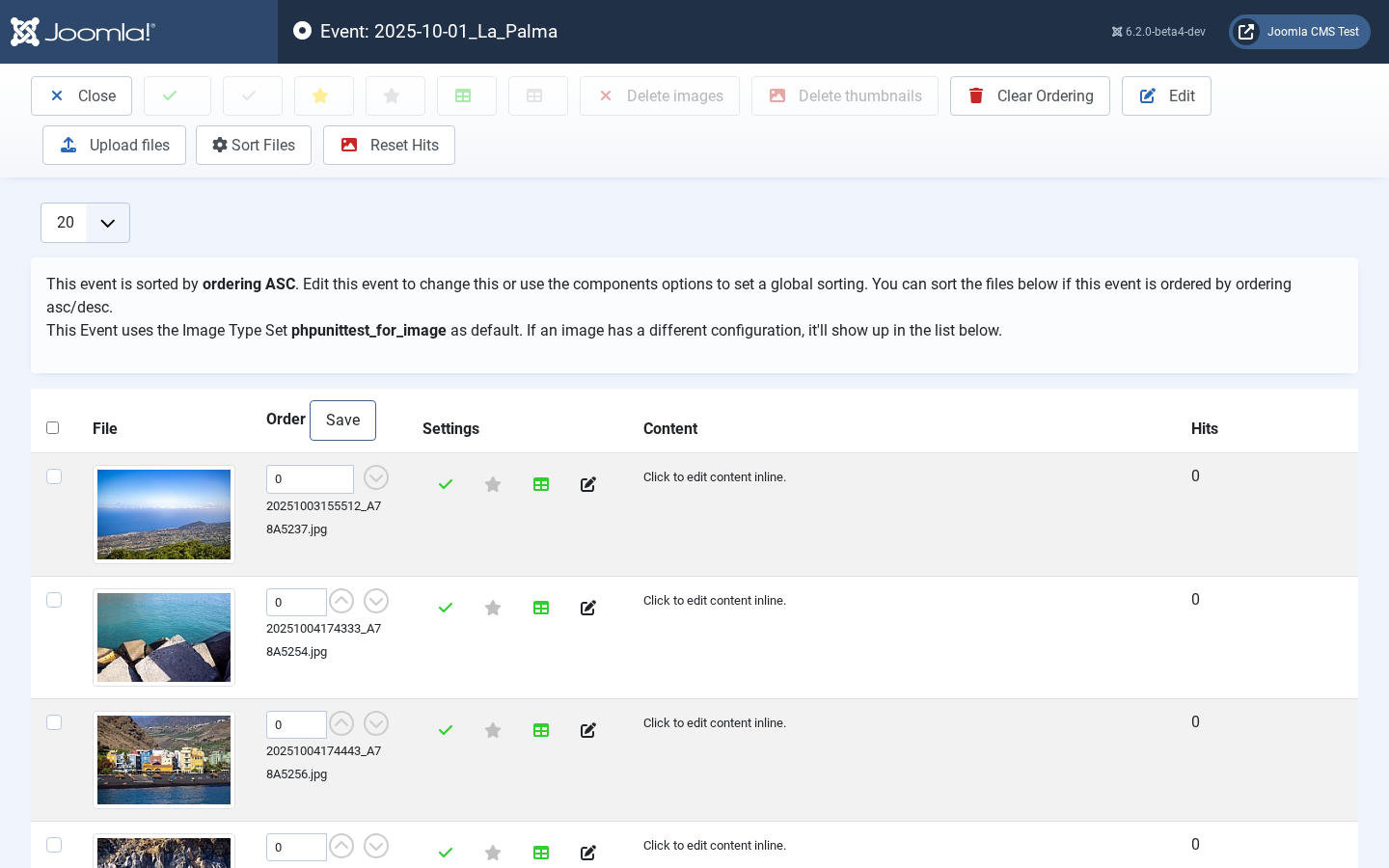
Once you have created your event and uploaded some photos, you may want to manage those files. Here is the right place for it. On this page you can sort, delete and modify the status of an image.
The options on this page are only available for images you manage yourself. Images on Google Photos or Flickr are managed remotely. There is a regular sync with those services to import the latest data.
-
published
Defines if this image appears in the front end.
-
main image
Should this image be used for the overview page in the front end? Multiple selections are possible; the image with the highest ranking wins.
-
show in image list
Sometimes you want to show an image on the overview page but not in the actual image list. With this option you can hide the image on the list. It’ll only appear on the overview page if it is defined as a main image.
The status of a photo can be changed by the button in the status column. By using the check boxes and the buttons in the toolbar you can perform an operation for multiple photos.
File Details
You can manage details for each local image on the file detail page.
Title
-
Title
The title for your image
-
Caption
The description for the image
-
Creation Date
You can sort your images by this value. It’s read from the IPTC creation date field of the image. The format is simply YYYYMMDDHHmmSS like 20160131105500.
-
URL
The url for the image. Whether this value is used depends on the layout you use. If it is used, a click on the image will redirect the user to the url you specified.
-
Image Type Set
Use this to sell this image with a different set of options and prices. If no value is set there, prices and formats (aka image types) are derived from the Event.