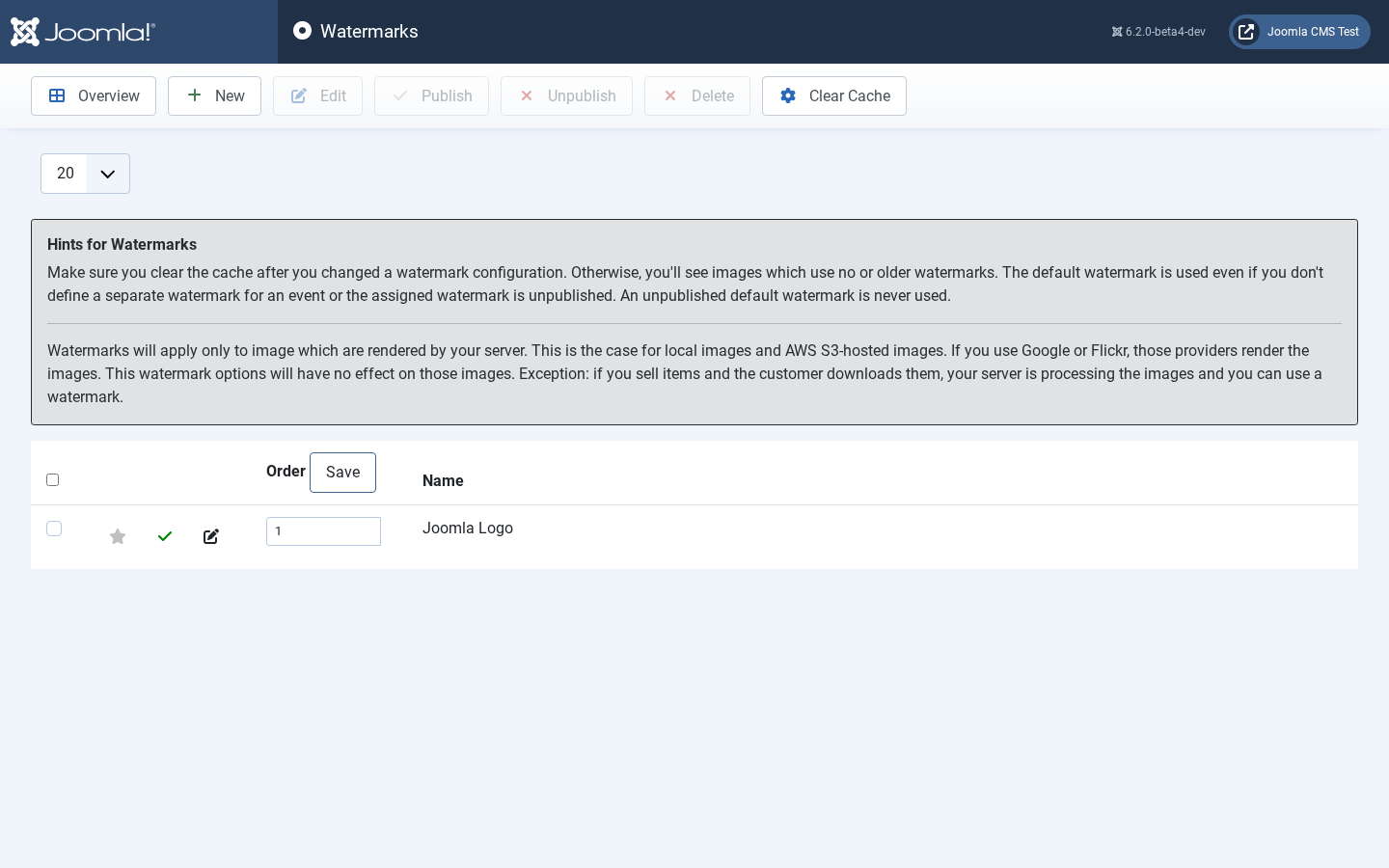
If you want to brand images of event with a watermark you can define a number of different watermark configurations here. Once you have created at least one here, you can use it for an event.
Check the event section for details.
![[Note]](/media/com_docimport/admonition/note.png) | Note |
|---|---|
|
Keep in mind watermarks only apply to local images and AWS S3 images. They do NOT work for images coming from Flickr or Google Photos. That’s actually impossible since those images are delivered directly from remote servers. |
For sold images, you can apply watermarks to images hosted by Google Photos and Flickr.
| Note |
|---|---|
|
Thumbnails are always cached. Make sure you clear both the server and the browser cache to see the changes you made. There can be a default watermark. A default watermark is used if no other watermark is defined or the defined watermark for an event is offline. |
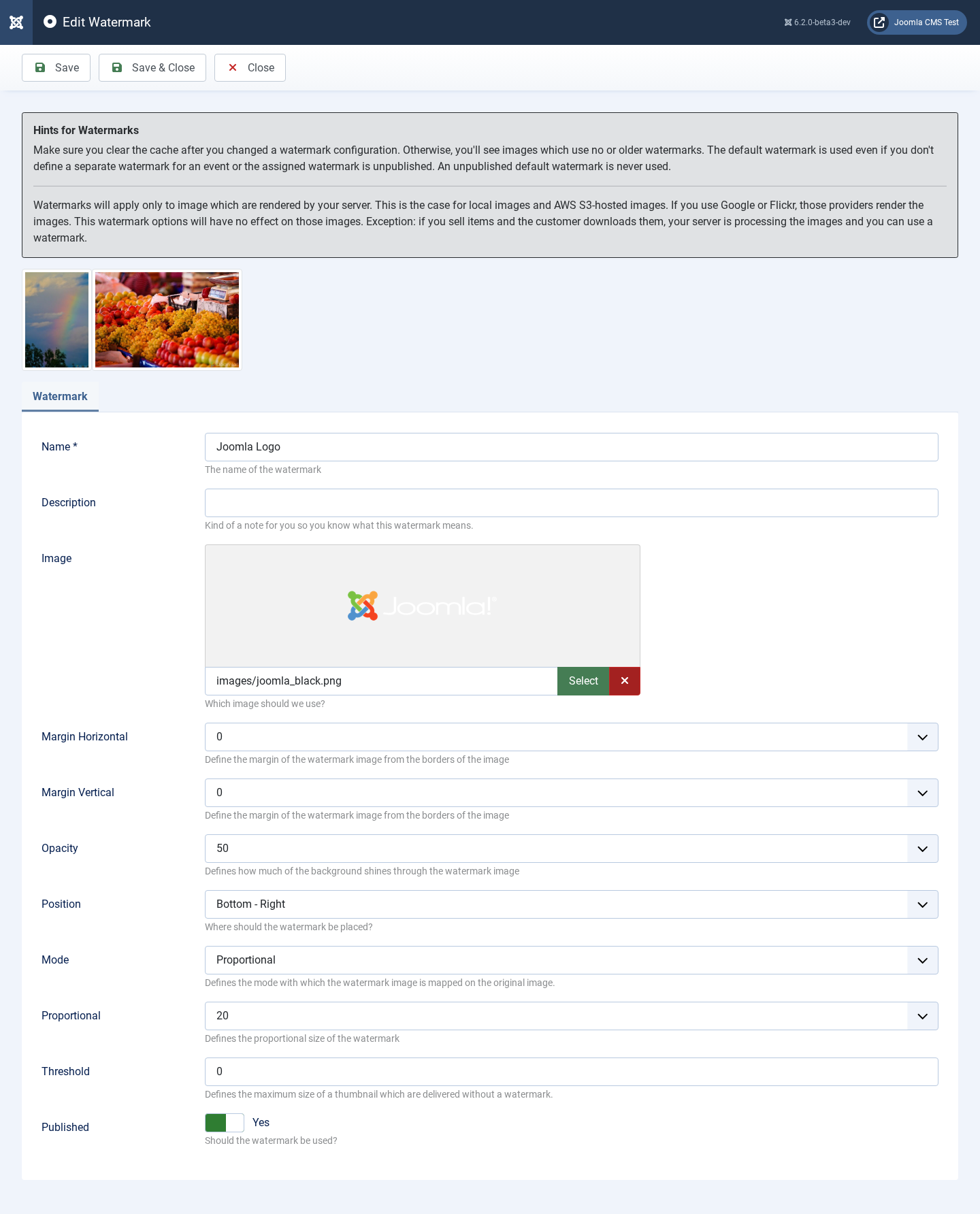
If you save a watermark configuration you’ll find a preview at the top that shows what a watermark looks like when applied to an image.
Here are the options you have to set up your watermark:
-
Name
The name of this watermark configuration. This is just for your own reference.
-
Description
The description of a watermark. Here you can add some notes to yourself. It’s not used while rendering a watermark.
-
Image
The image which is used as watermark.
-
Margin Horizontal
Defines the horizontal margin of the watermark. This setting is relative to the image size.
-
Margin Vertical
Defines the vertical margin of the watermark. This setting is relative to the image size.
-
Opacity
Defines the opacity of the watermark. 0 will make the watermark invisible.
-
Position
Where should we place the watermark image?
-
Mode
Choose how the watermark image should be rendered on the image. Fill means the watermark is just copied on the image. Fit will fit the watermark to 100% of the width of the image. The proportional setting allows slightly more adjustment of the size of the watermark.
-
Proportional
If you select the proportional mode you can use this parameter to adjust the size of the watermark on the image. 100 means to fill 100% of the width.
-
Threshold
You can define the maximum size for thumbnails before they get a watermark. This way small thumbnails can be delivered without watermarks while the larger ones get a watermark.
-
Published
Is this watermark visible in the front end? Only published watermark configurations are applied in the front end rendering process. If you assign an unpublished watermark to an event, the images will not be watermarked.