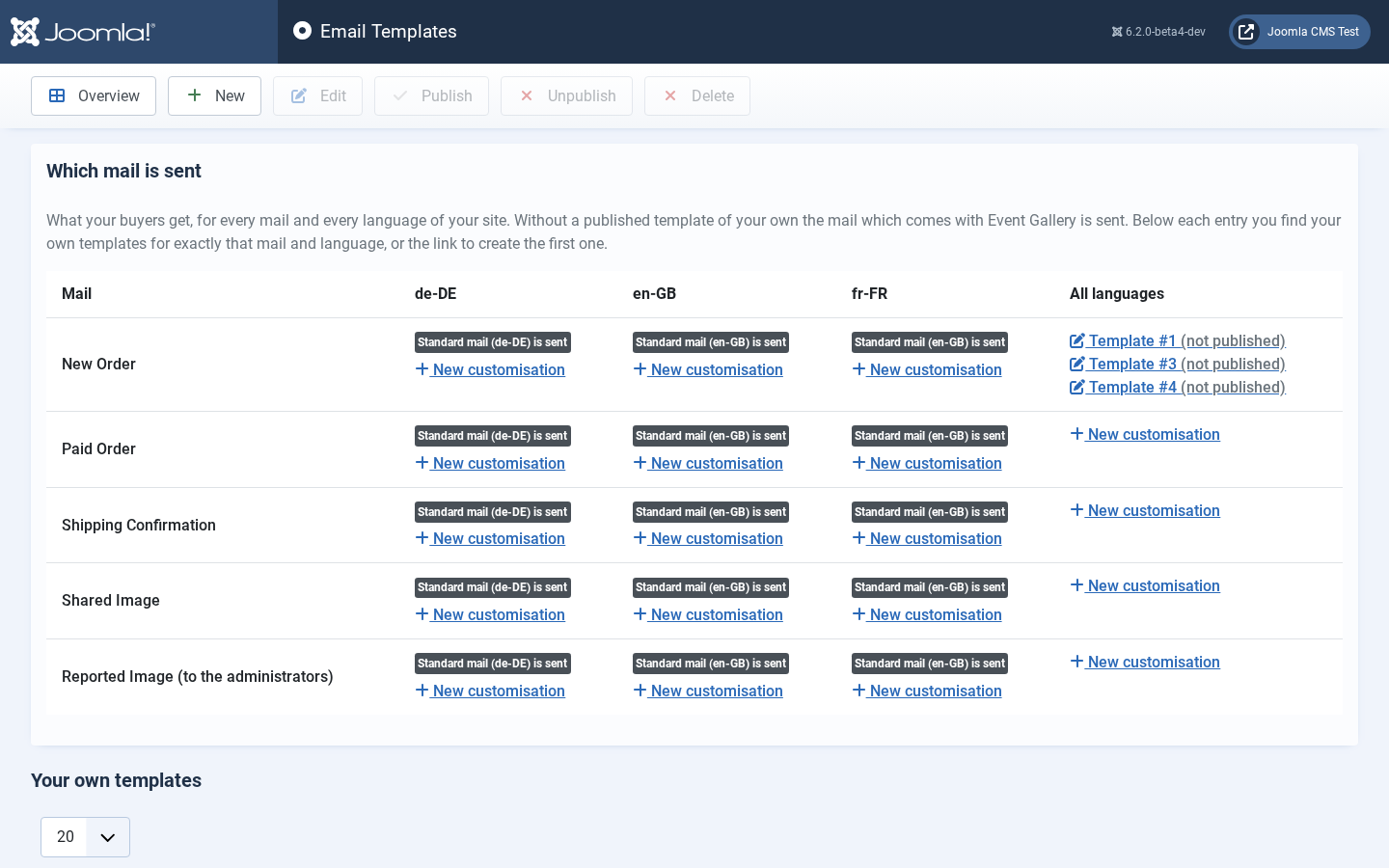
The page starts with an overview, Which mail is sent: for every mail and every language of your site it tells whether your buyers get a template of your own or the mail which comes with Event Gallery, and in which language. Below that, each entry lists your own templates for exactly that mail and language - also the ones which are not published and therefore not sent. Where you have none yet, New customisation creates one, filled with the mail which is sent right now, so you only change what you want to change. The column All languages holds the templates which are used for every language without a template of its own. The list Your own templates below the overview holds all of them.
Email templates let you format the mail sent by the system. To give you as much flexibility as possible the template engine Smarty is used. Just check the https://www.smarty.net/documentation for the template syntax. It’s possible to define separate email templates for every language. If no template for a purpose is defined, the default one is used. The default templates come in English and German: a buyer who ordered in German gets the German mail. For every other language the default of the default language of your site is used, and English if there is none. You need to define language-specific templates for those languages.
You don’t need to fill the subject and the body if you create a new mail template. If an empty field is encountered, the default value is used. This should help you get started.
Below the fields you find a preview of the mail with example data. It shows the mail as it is typed in the form, so you do not need to save to see a change: press Refresh. Desktop and Phone switch the width of the preview, Text version shows the plain text version which is sent along with every mail. If a template contains a mistake, the preview tells you what the template engine complains about. Below the preview, Placeholders lists everything a template for the chosen purpose can print, with the value from the example data.
![[Note]](/media/com_docimport/admonition/note.png) | Note |
|---|---|
|
Since you can actually code those templates you might create errors too. Always test your templates: use the preview, and the Send test mail button, which sends the saved template to your own address. Load Default fills subject and body with the current mail for the purpose and the language you have chosen in the form. Don’t forget to save afterwards. |
The mails which come with Event Gallery share one frame and a few building blocks, and your own templates can use them as well. The frame is a complete HTML document which works on phones and desktops, in Outlook as well as in Gmail, and in dark mode: a header with your logo or the name of your site, the content, and a footer with your address. Logo, accent colour and address come from the options of the component ( → ). A body which uses the frame looks like this:
{extends file='_layout.tpl'}
{block name=lang}en{/block}
{block name=preheader}The line a mail program shows next to the subject.{/block}
{block name=content}
    {* every word the building blocks print comes from here; *Load Default* shows the full array *}
    {$labels = ['items' => 'Your items', 'quantity' => 'Quantity', 'subtotal' => 'Subtotal']}
    <p>Hello {$data->order->billingaddress->firstname|escape},</p>
    {include file='_lineitems.tpl' order=$data->order labels=$labels}
{/block}
The building blocks contain no text.
They get every word from your template as labels, which is why a template of yours stays complete in its language; use Load Default to see the list of labels of a mail.
These building blocks exist:
| The ordered images with thumbnail, format, file, quantity, the note of the buyer and the price. |
| Subtotal, discounts, surcharge, shipping, payment, total and VAT. |
| Billing and shipping address. They sit side by side and move below each other on a phone. |
| E-mail, phone and message of the buyer. |
| A box around what a payment or shipping method adds to the mail, for example a pay now button or the download links. Parameter: |
| A button in your accent colour. Parameters: |
There are three ways to make the mails yours, from small to large:
- The options Logo, Accent Colour and Address ( → ) change all mails.
-
The frame has blocks, and a block you write into the body of a template replaces the one of the frame, for that mail and language only:
contentis the content of the mail,preheaderthe line a mail program shows next to the subject,footerthe footer with your address,langthe language code. For a different footer add{block name=footer}Your text{/block}to the body. -
To change the frame itself or a building block for all mails, copy the file from
components/com_eventgallery/tmpl/mailinto the foldertemplates/<your site template>/html/com_eventgallery/mailand change the copy. A file there replaces the file of the same name and survives updates of Event Gallery, while the original is overwritten by every update. The same works for the mails themselves (for examplede-DE/new_order_body.tpl), and a new language folder there adds a language. The form of an email template names the folder of your site under Frame and building blocks.
| Note |
|---|---|
|
Email templates you created with an earlier version keep working exactly as they are. They do not use the frame, so they do not become responsive on their own. If you want the new look, open the template, use Load Default and bring your changes over. Whatever a buyer typed - names, addresses, the message, the note to an image - has to be escaped in a template: |
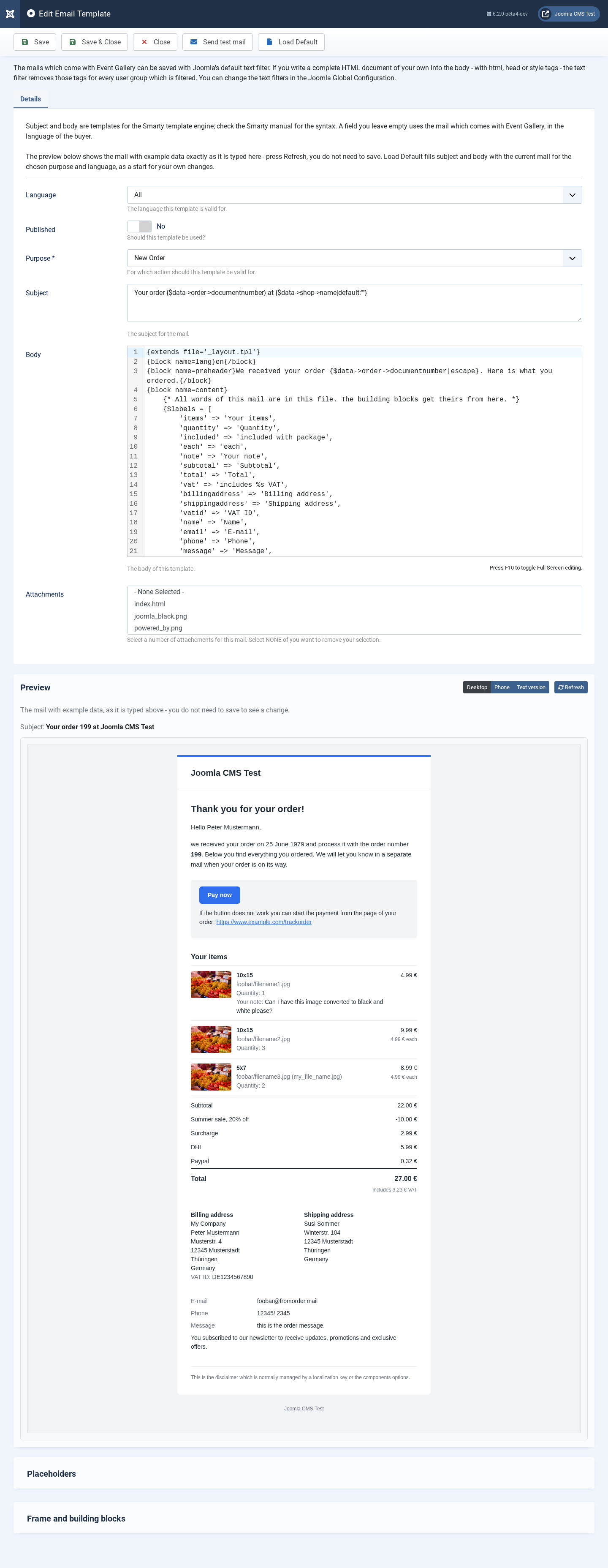
-
Language
Defines the language this email template is valid for.
-
Published
Is this email template available?
-
Purpose
For which action should we use this template?
-
Subject
Defines the subject of the email.
-
Body
Defines the body of the email.
-
Attachments
If you want to attach PDF files like the disclaimer or other documents you can select them here. Those files need to be stored in the
/imagesfolder of your Joomla! installation. If you want to remove your selection, select the NONE entry.