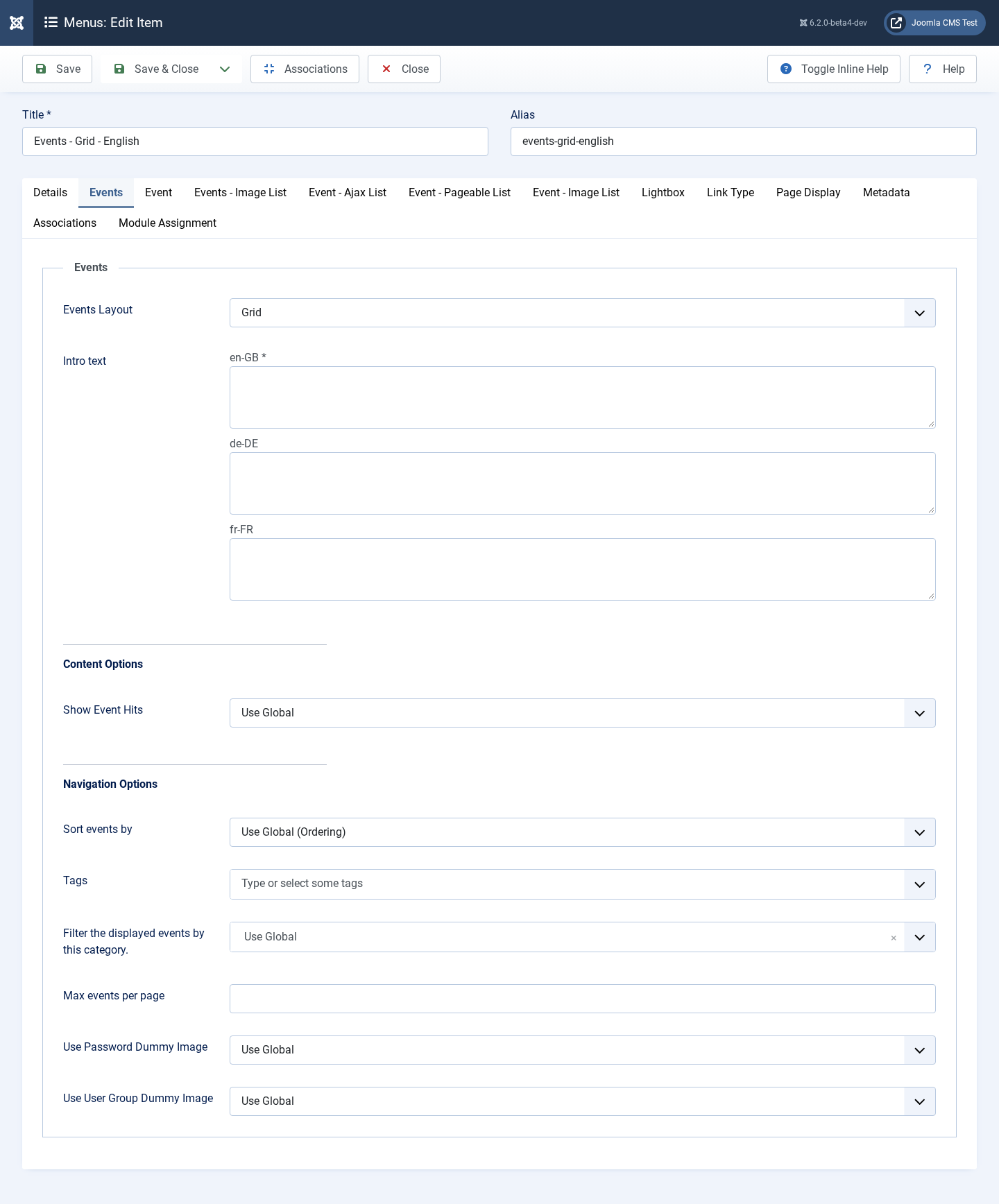
Creating links to the component is simple. Open the menu manager, create a new menu item and select the right view. The name of the component you want to link to is Event Gallery so choose the right section and the available targets will appear.
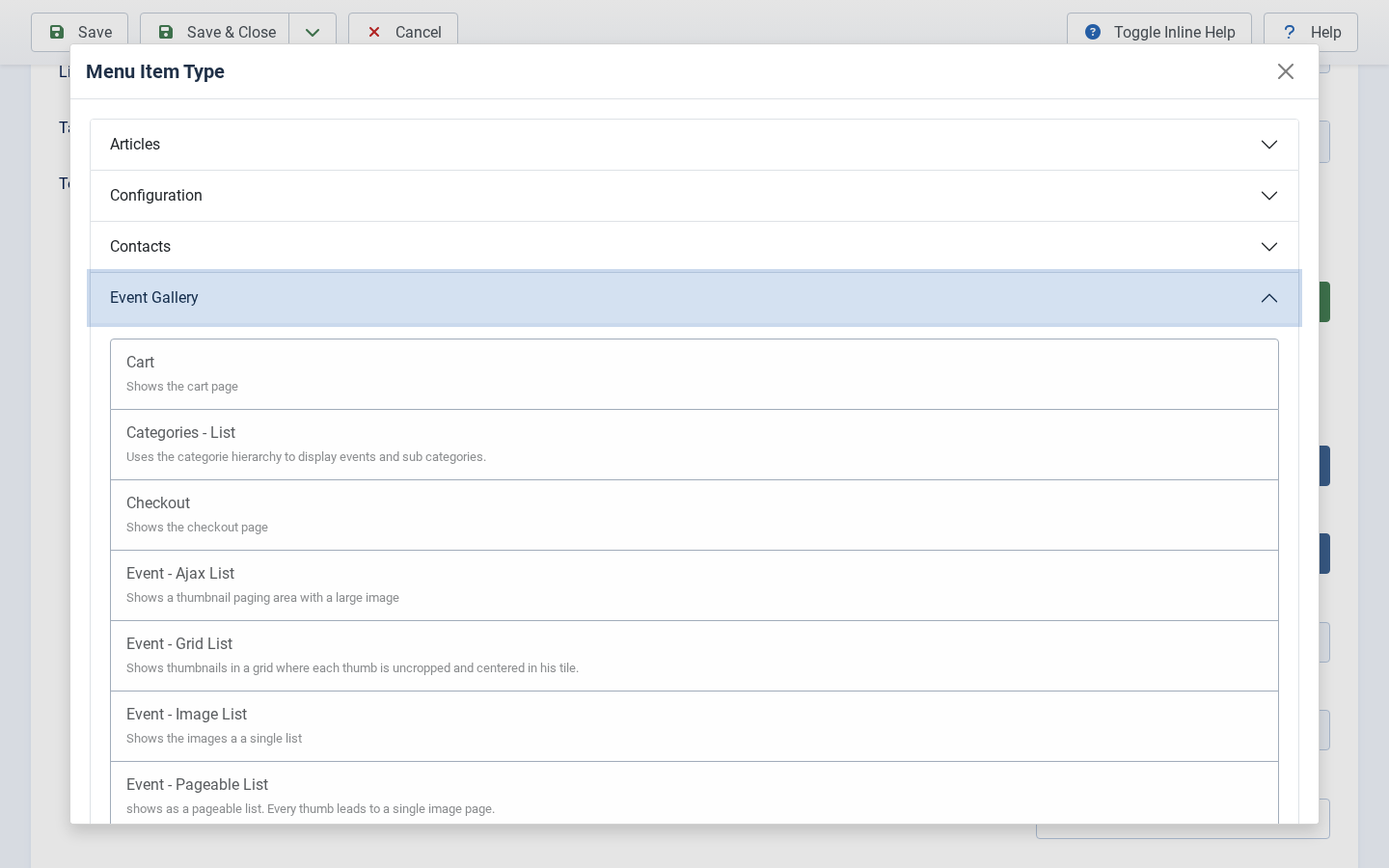
There are several views available:
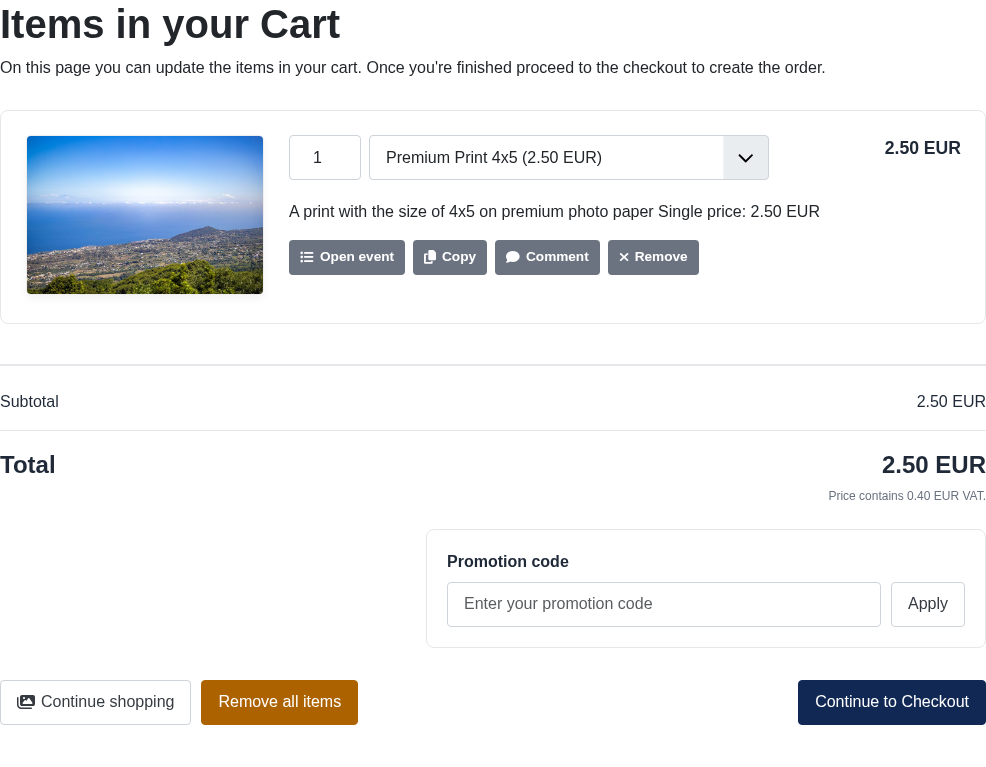
Cart
Shows a page which contains the cart of the current user
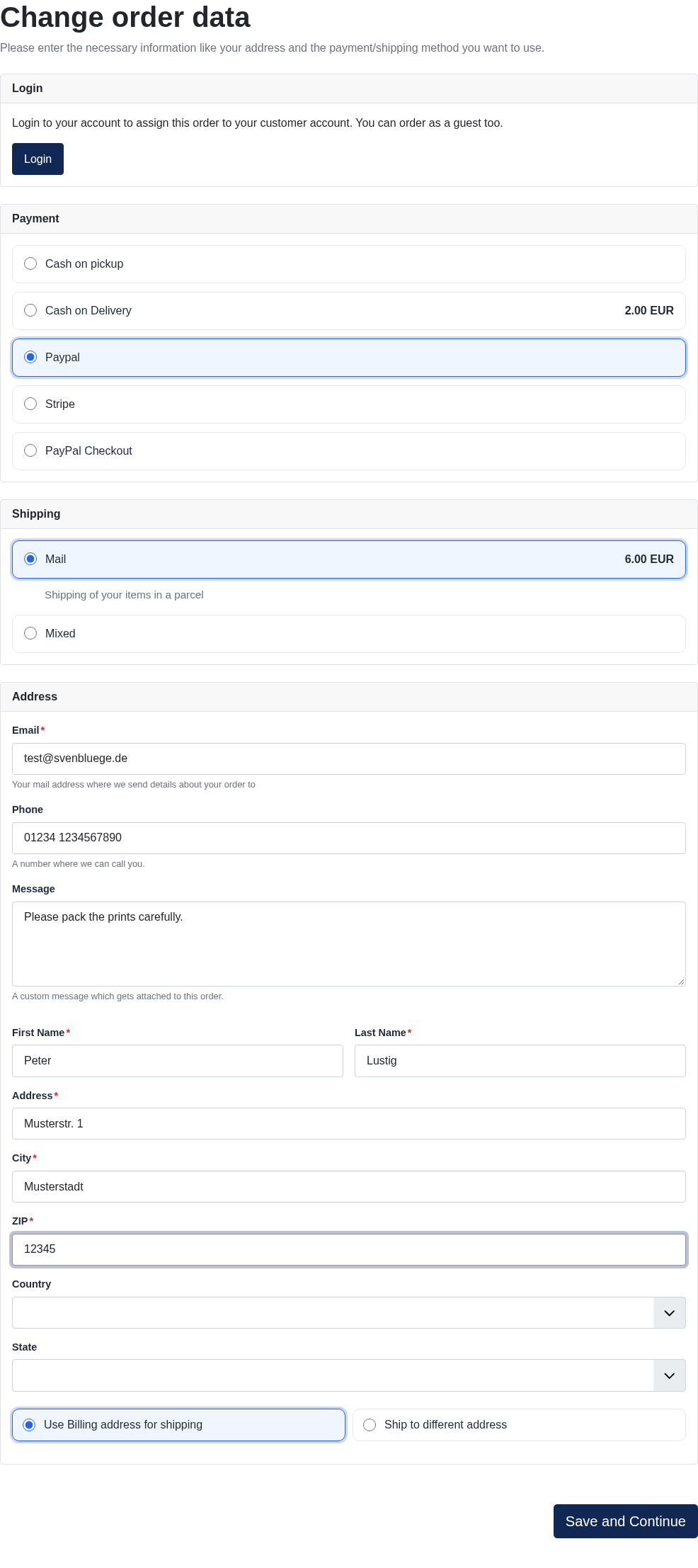
Checkout
Displays the checkout page, where the user can submit the contents of their cart.
Event Access
Shows a landing page with nothing but a password field.
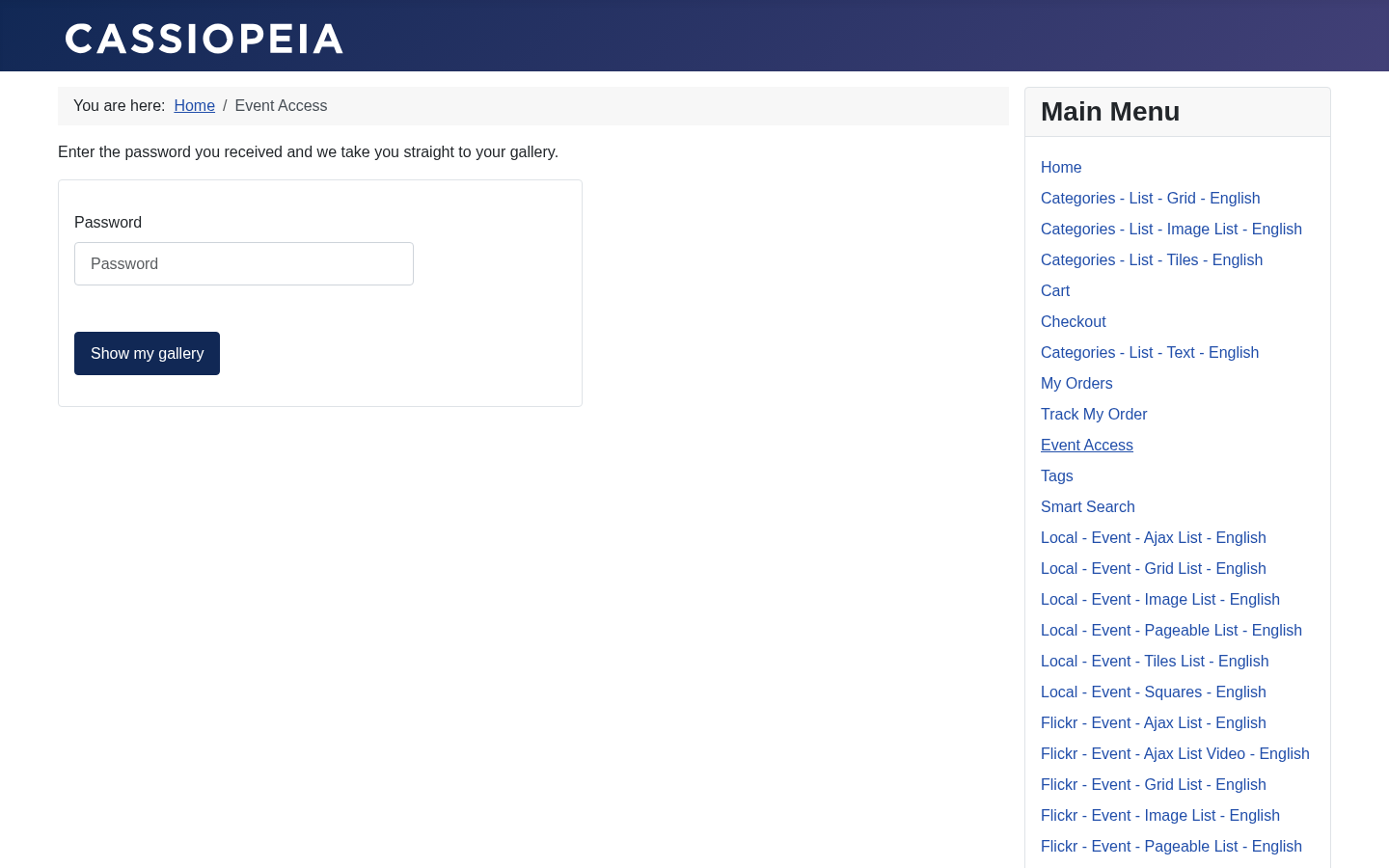
The visitor enters the password of a password-protected Event and lands directly in that gallery, without having to know its address.
This is meant to be handed out together with the password: put the link to this page on your website or on the card you give your customers, tell them their password, and they are done. It saves you from sending a different link to every customer.
Options
-
Instructions
The text above the password field. Use it to explain where the password came from or whom to ask for it. It is a multilingual field and accepts HTML, so you can add a paragraph, a link to your contact page or a mail address. Leave it empty and the page shows a generic sentence instead.
The page only finds Events the visitor is allowed to see anyway. An unpublished Event, or one which is restricted to a user group the visitor is not part of, is never opened by it, no matter which password is entered. If a password happens to belong to more than one Event, all of them are unlocked and the visitor gets a small list to pick from.
Because this page lets anybody try passwords against every Event of the site, it protects itself twice:
- It uses the captcha you configured in Joomla, so leave the captcha empty and there is none.
- It allows ten wrong passwords per hour, counted per session and per IP address, so throwing away cookies does not reset the limit. Afterwards the visitor has to wait. The IP address itself is not stored, only a hash of it. The same budget applies to the password page of a single Event.
If your site sits behind a proxy or a CDN, switch → → → on. Otherwise Joomla sees the address of the proxy for every visitor, and the wrong passwords of one guest count against everybody else.
If ten attempts per hour is too strict or too generous for your site, define COM_EVENTGALLERY_MAX_PASSWORD_ATTEMPTS_PER_HOUR before Event Gallery does.
Categories
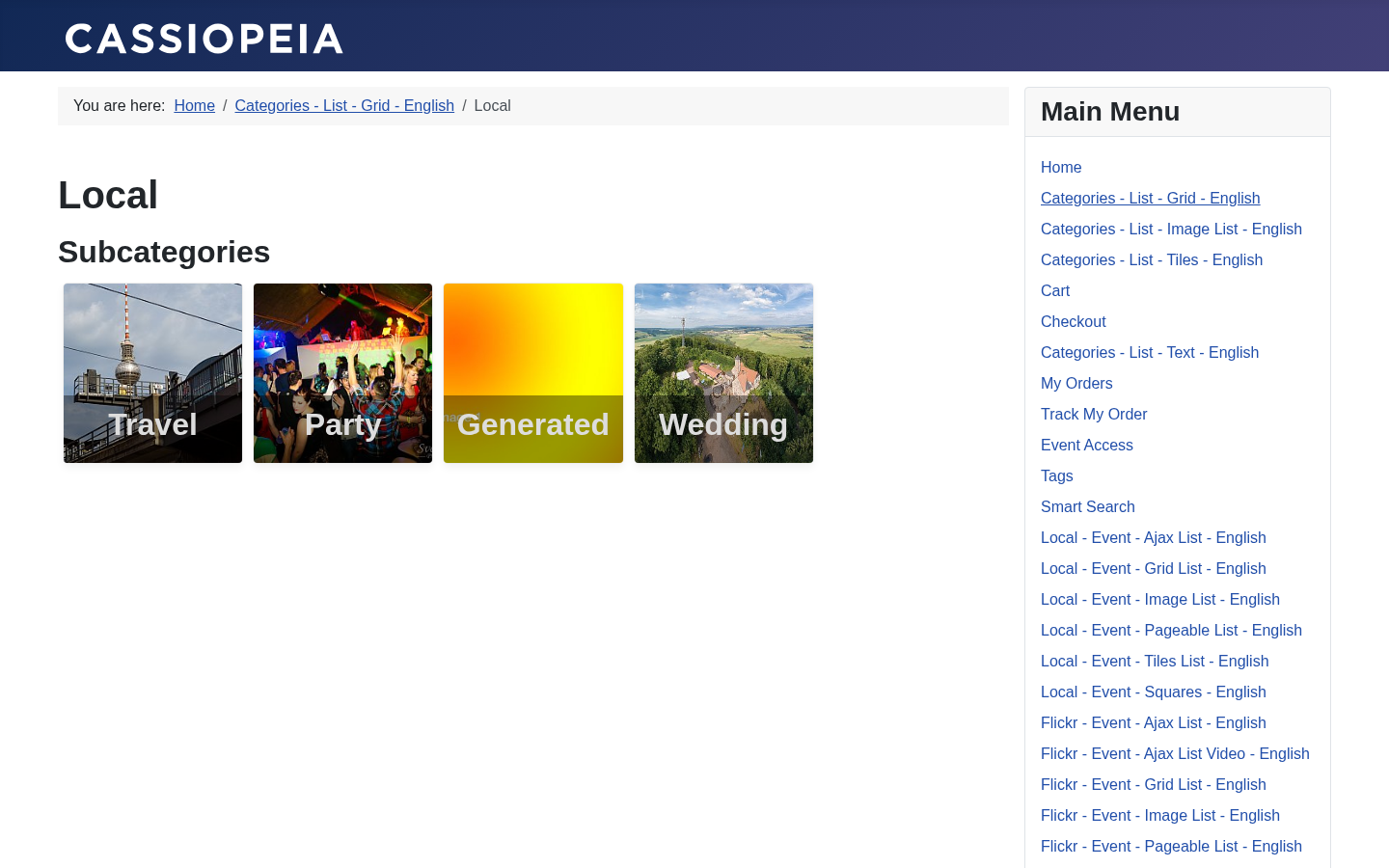
Displays a list of events and the subcategories of the selected category. If you choose ROOT all events are shown.
Event
- Event Layout defines how to display the images of an event.
- Event Headline For SEO reasons a default H1 tag for the headline does not always make sense. This option allows you to change the tag to another headline type.
- Use paging Defines if a paging bar is displayed for a list of images.
- Show EXIF If EXIF information for an image is available, this toggle switches it on or off.
- Show event text Defines whether to show the text for an event in the event list.
- Show date You can toggle the appearance of the date for the events shown within this menu item
- Show Filename Defines whether the filename of the current image is shown, to make potential customers aware of it. The filename of the current image will appear together with the image title and caption. This even works for the lightbox.
- Show image count Defines whether to display the overall number of images for an event in the events list
Events
- Layout defines which layout to use for an event. You can configure the appearance of the event page with the options described above.
- Intro Text defines a text for the events page. Usually displayed on top of the page.
- Sort By defines the direction and the attribute which is used to sort the events.
- Max events per page Defines how many events are shown per page before the paging bar appears.
- Show hits Enables the display of the number of hits an event received. Please note that hits can only be counted if caching is disabled. If you have an event which uses paging each page is counted as a hit.
- Use Password Dummy Image Show a dummy image instead of the main image in a list of events if the folder is password-protected. Once the user entered the right password this image will be replaced with the event’s main image.
- Use UserGroup Dummy Image Show a dummy image instead of the main image in a list of events if the folder for a specific user group only. The real image will appear once the user is logged in with the right group.
- Show Events per Category Show the number of assigned events for a category.
Event - Ajax List
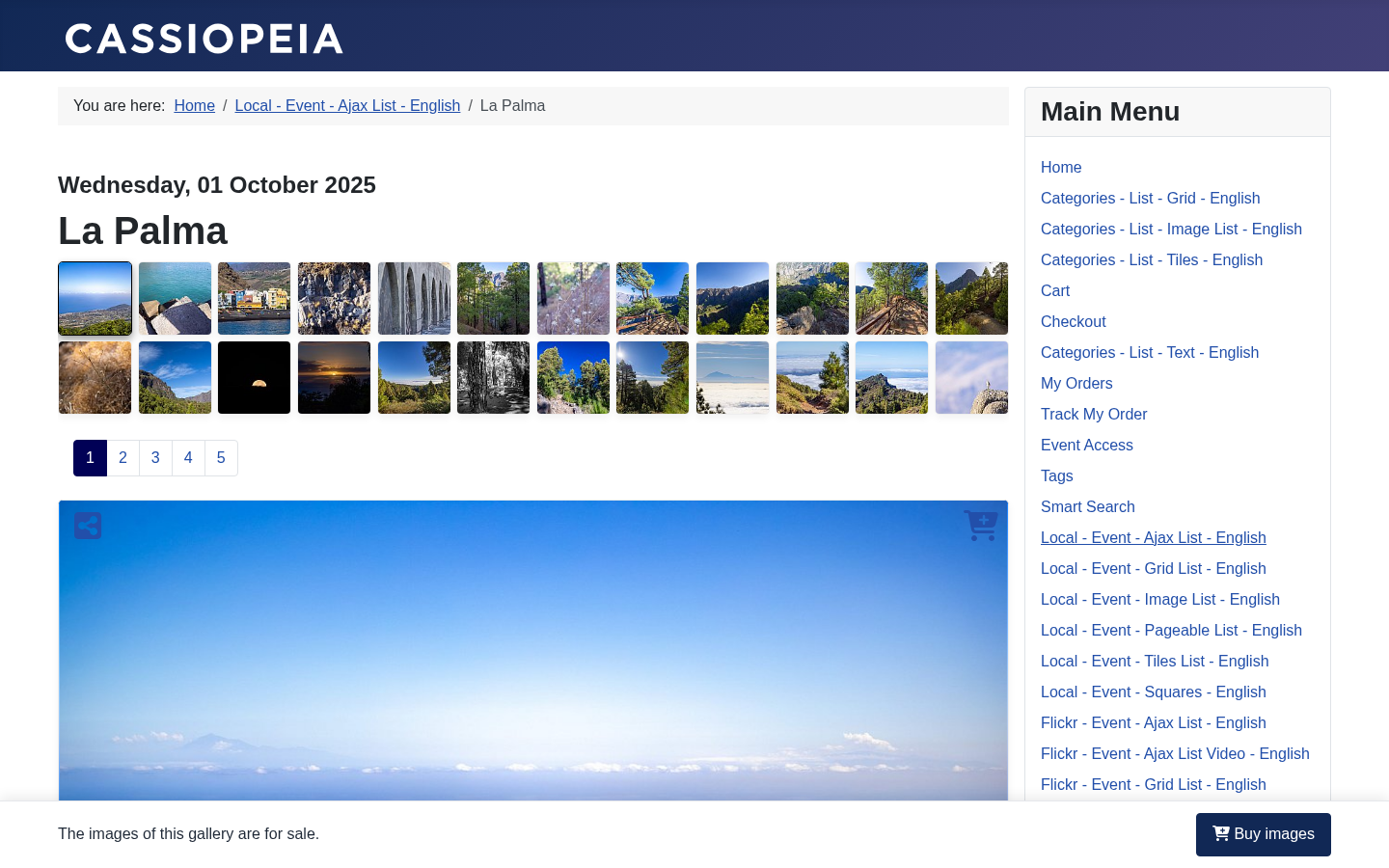
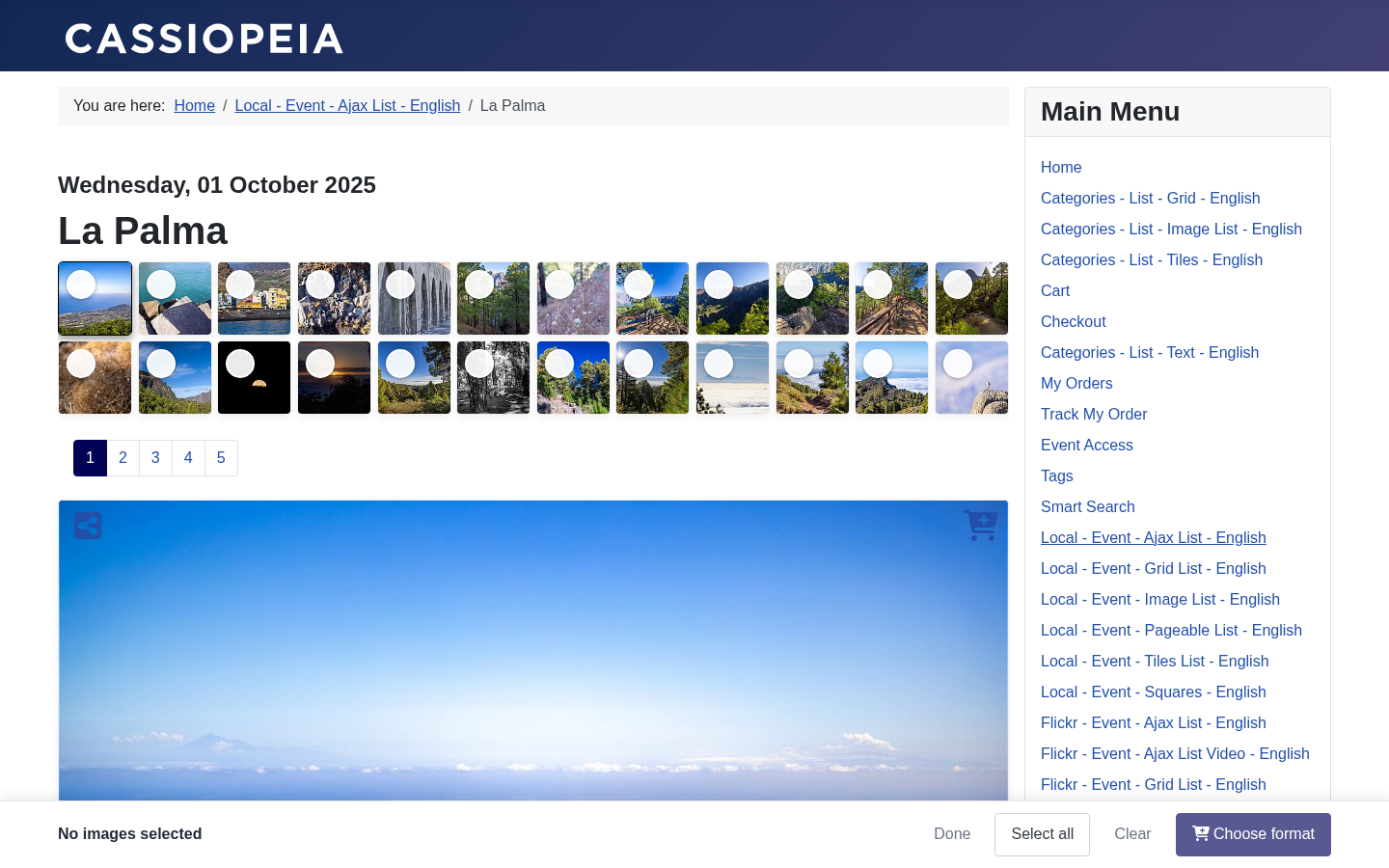
Shows a specific event with the Ajax List view
Basic Options
- Event: the event you want to display
Advanced Options
- Show EXIF If EXIF information for an image is available, this toggle switches it on or off.
- Show date You can toggle the appearance of the date for the events shown within this menu item
- Height of the thumbnails Defines the height of the thumbnails in the navigation bar.
- Maximum height of the thumbnail area Defines how much vertical space in px a single page of thumbnails may use. The thumbnails are not assigned to pages by a fixed number but distributed to as many pages as needed to stay below that height. A narrow window fits fewer thumbnails into a row, so it simply gets more pages instead of more rows, and resizing the window redistributes them right away. If the event name and description are shown inline, they count towards this height, so the first page holds fewer thumbnails than the following ones.
- Show Information Inline Defines where to show the event name and description. Inline on the first thumbnail page or on top of the page.
- Use paging Defines if a paging bar is displayed for a list of images.
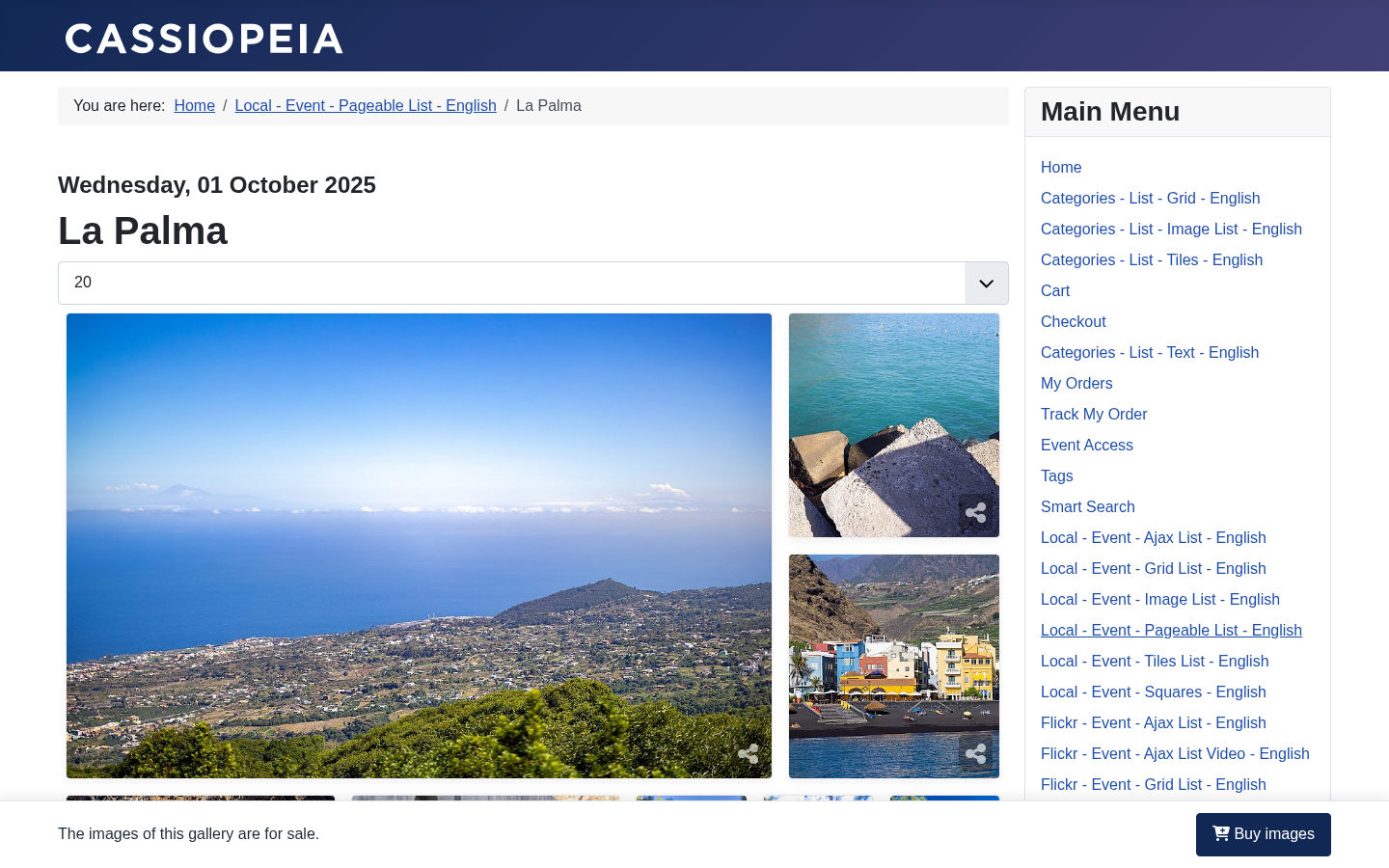
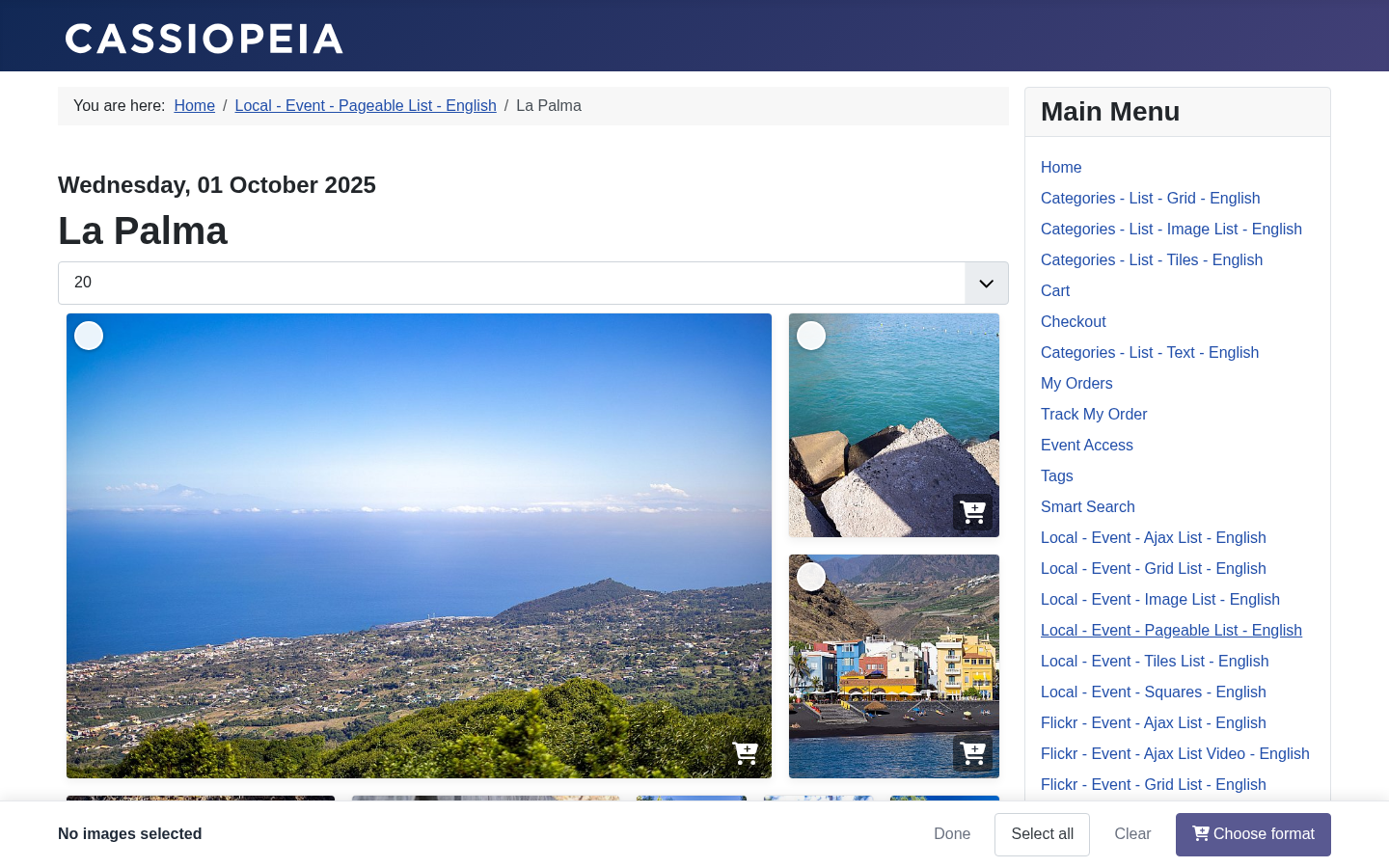
Event - Pageable List
Shows a specific event with the Pageable List view
Basic Options
- Event: the event you want to display
Advanced Options
- Show EXIF If EXIF information for an image is available, this toggle switches it on or off.
- Show date You can toggle the appearance of the date for the events shown within this menu item
- show hits Enables the display of the number of hits an event received. Please note that hits can only be counted if caching is disabled. If you have an event which uses paging each page is counted as a hit.
- Height of the thumbnails defines the initial height of each row in the grid in pixels.
- Height jitter defines the maximum number of pixels by which the row height may vary.
- Height of the first thumbnails defines the height in rows of the first photo in the list.
- Show image caption overlay Defines whether the image title and caption are displayed on an image. This setting affects only the pageable list and the image list.
- Use paging Defines if a paging bar is displayed for a list of images.
- Show Filename Defines whether the filename of the current image is shown, to make potential customers aware of it. The filename of the current image will appear together with the image title and caption. This even works for the lightbox.
- Show Image Title Toggles the display of the image title.
- Show Image Caption Toggles the display of the image description.
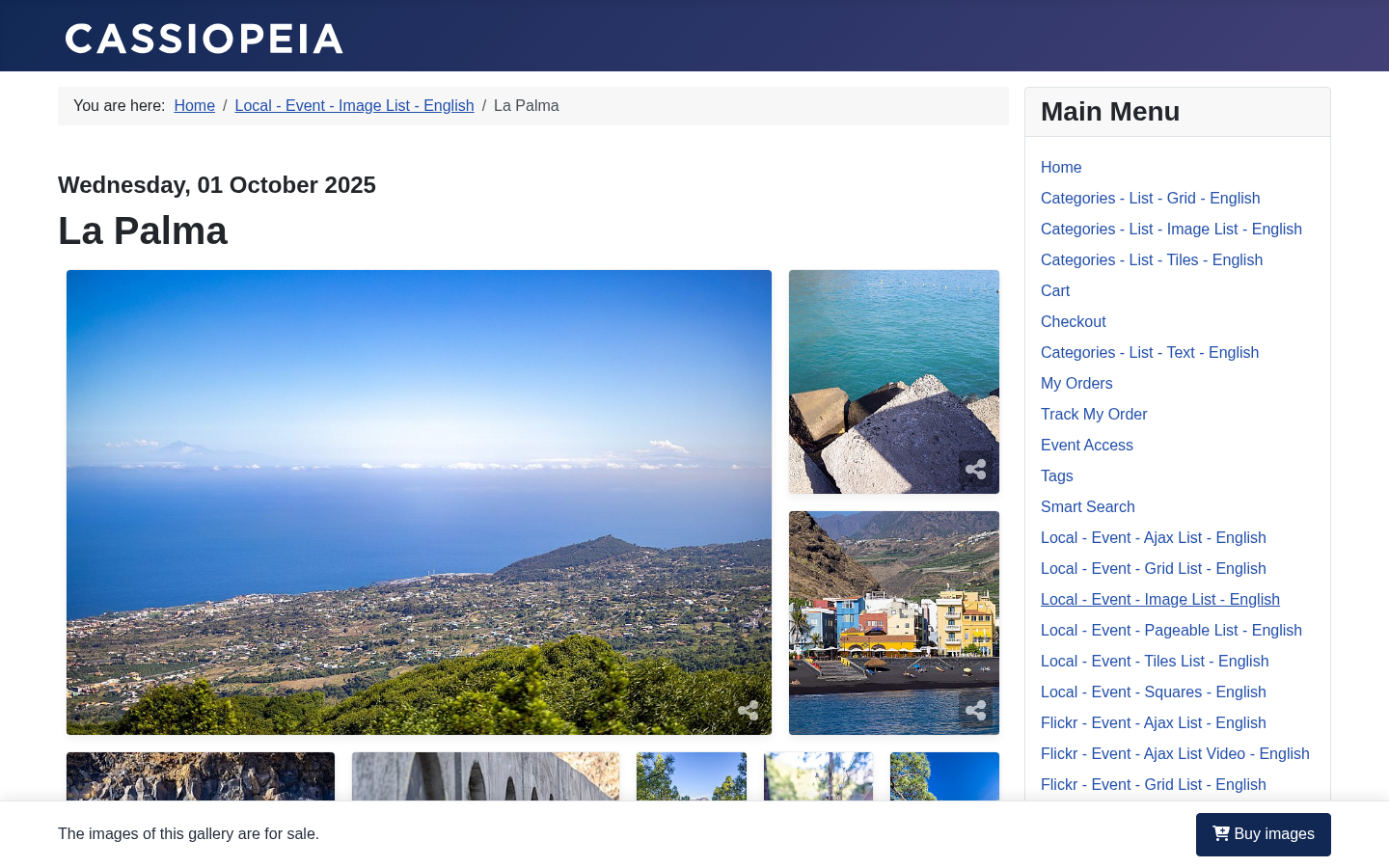
Event - Image List
Shows a specific event with the Image List view
Basic Options
- Event: the event you want to display
Advanced Options
- Show EXIF If EXIF information for an image is available, this toggle switches it on or off.
- Show date You can toggle the appearance of the date for the events shown within this menu item
- Height of the thumbnails defines the initial height of each row in the grid in pixels.
- Height jitter defines the maximum number of pixels by which the row height may vary.
- Height of the first thumbnails defines the height in rows of the first photo in the list.
- Show image caption overlay Defines whether the image title and caption are displayed on an image. This setting affects only the pageable list and the image list.
- Use paging Defines if a paging bar is displayed for a list of images.
- Show Filename Defines whether the filename of the current image is shown, to make potential customers aware of it. The filename of the current image will appear together with the image title and caption. This even works for the lightbox.
- Show Image Title Toggles the display of the image title.
- Show Image Caption Toggles the display of the image description.
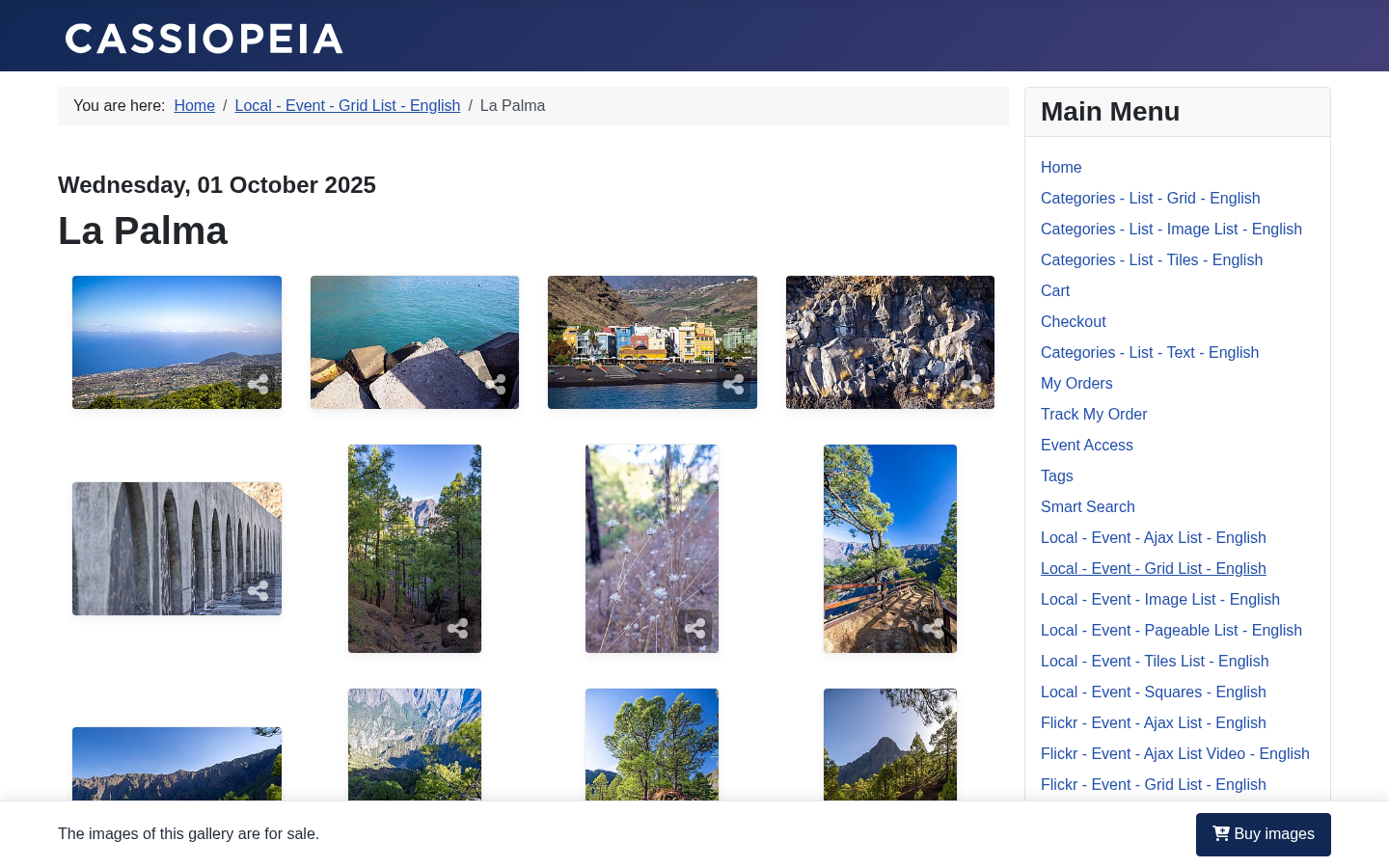
Event - Grid List
Shows the images of an event in a grid. Images are not cropped and centered in a tile.
Basic Options
- Event: the event you want to display
Advanced Options
- Show EXIF If EXIF information for an image is available, this toggle switches it on or off.
- Show date You can toggle the appearance of the date for the events shown within this menu item
- Use paging Defines if a paging bar is displayed for a list of images.
- Show Filename Defines whether the filename of the current image is shown, to make potential customers aware of it. The filename of the current image will appear together with the image title and caption. This even works for the lightbox.
- Show Image Title Toggles the display of the image title.
- Show Image Caption Toggles the display of the image description.
Event - Tiles List
Shows the images of an event in a Pinterest-like layout.
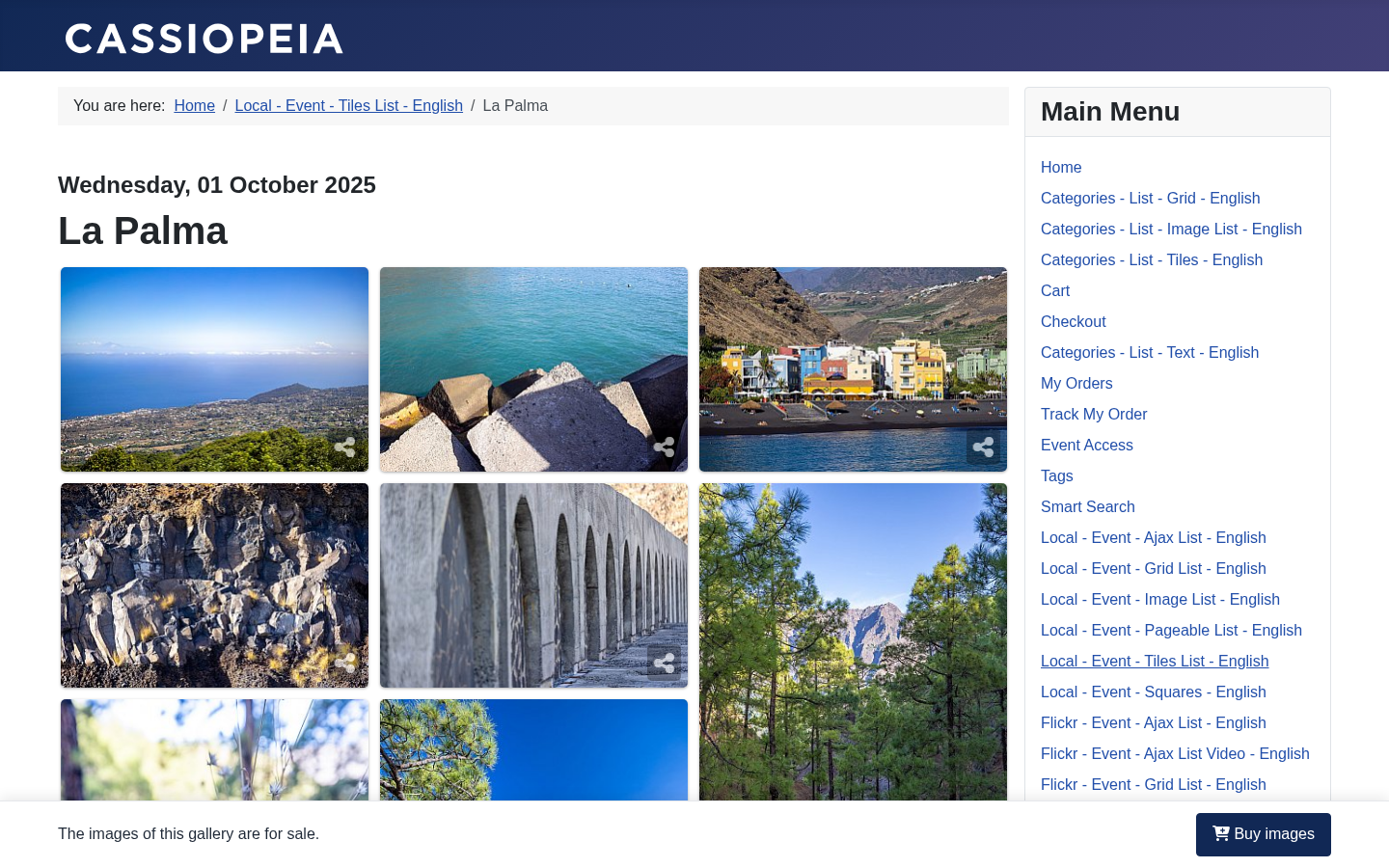
Basic Options
- Event: the event you want to display
Advanced Options
- Show EXIF If EXIF information for an image is available, this toggle switches it on or off.
- Show date You can toggle the appearance of the date for the events shown within this menu item
- Use paging Defines if a paging bar is displayed for a list of images.
- Show Filename Defines whether the filename of the current image is shown, to make potential customers aware of it. The filename of the current image will appear together with the image title and caption. This even works for the lightbox.
- Show Image Title Toggles the display of the image title.
- Show Image Caption Toggles the display of the image description.
Event - Squares
Shows all images of an event as square-sized thumbnails.
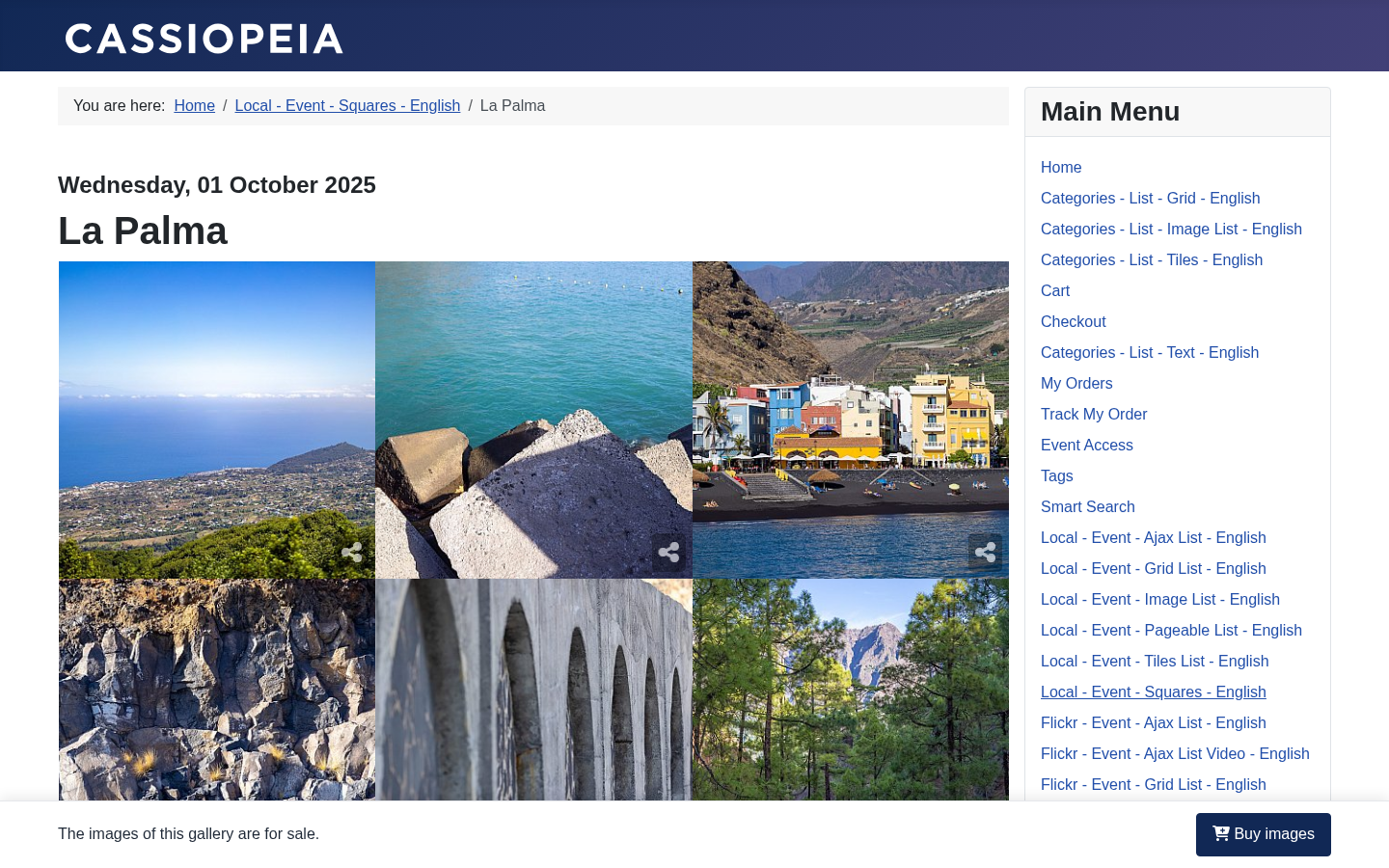
Basic Options
- Event: the event you want to display
Advanced Options
- Show EXIF If EXIF information for an image is available, this toggle switches it on or off.
- Show date You can toggle the appearance of the date for the events shown within this menu item
- Use paging Defines if a paging bar is displayed for a list of images.
- Show Filename Defines whether the filename of the current image is shown, to make potential customers aware of it. The filename of the current image will appear together with the image title and caption. This even works for the lightbox.
- Show Image Title Toggles the display of the image title.
- Show Image Caption Toggles the display of the image description.
Events - List
Displays a list of events.
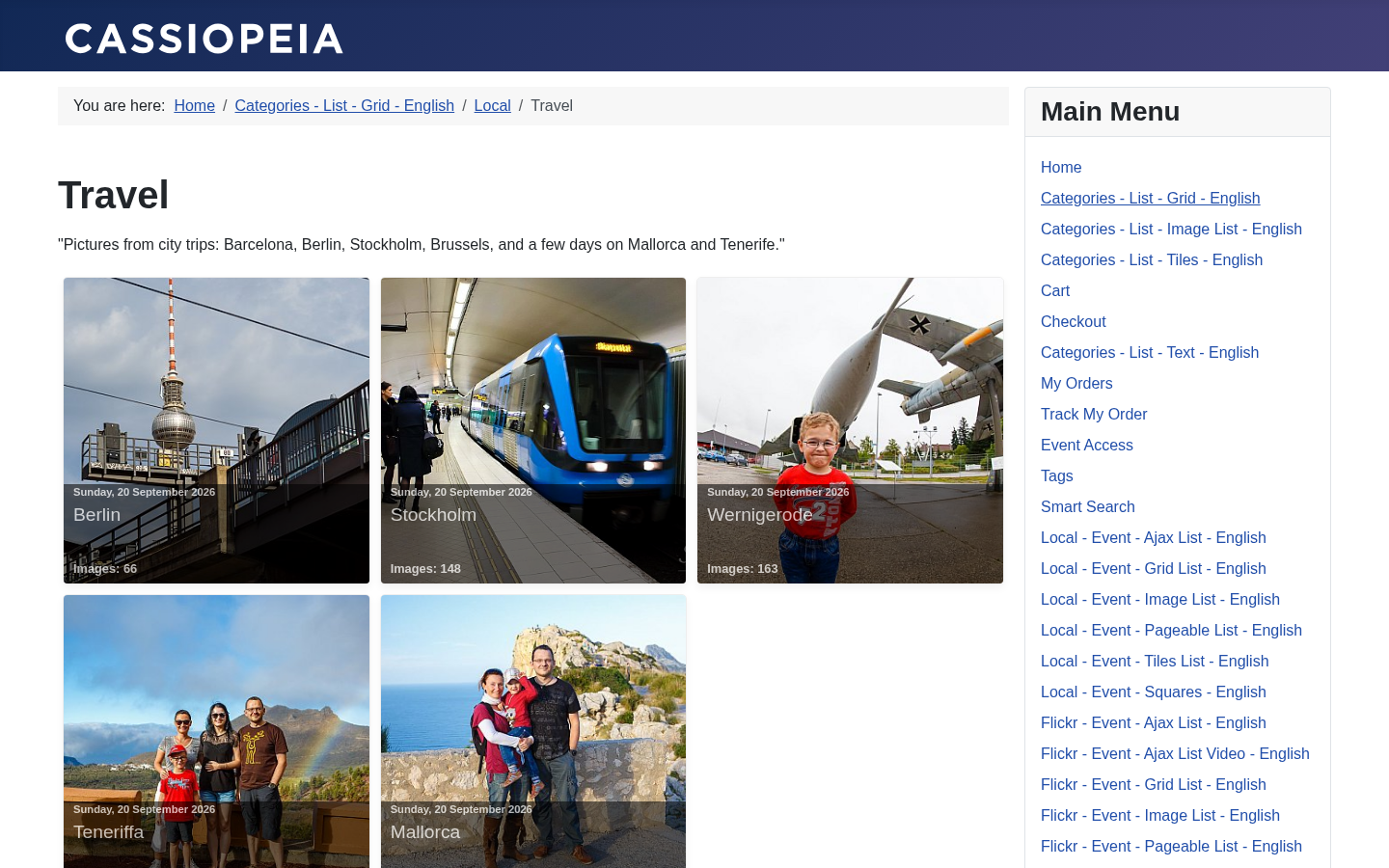
Event
- Event Layout defines how to display the images of an event.
Events
- Layout defines which layout to use for an event. You can configure the appearance of the event page with the options described above.
- Intro Text defines a text for the events page. Usually displayed on top of the page.
- Tags defines which tag an event must have in order to be displayed in this list of events.
- Category shows only events from this category
- Sort By defines the direction and the attribute which is used to sort the events.
- Max events per Page Defines how many events are shown per page before the paging bar appears.
- Show EXIF If EXIF information for an image is available, this toggle switches it on or off.
- Show event text Defines whether to show the text for an event in the event list.
- Show date You can toggle the appearance of the date for the events shown within this menu item
- Use paging Defines if a paging bar is displayed for a list of images.
- Show Filename Defines whether the filename of the current image is shown, to make potential customers aware of it. The filename of the current image will appear together with the image title and caption. This even works for the lightbox.
- Show image count Defines whether to display the overall number of images for an event in the events list
- show hits Enables the display of the number of hits an event received. Please note that hits can only be counted if caching is disabled. If you have an event which uses paging each page is counted as a hit.
- Show image caption overlay Defines whether the image title and caption are displayed on an image. This setting affects only the pageable list and the image list.
- Use Password Image for Event Show a dummy image instead of the main image in a list of events if the folder is password-protected. Once the user entered the right password this image will be replaced with the event’s main image.
- Show back button If enabled the event pages will have a back link in case the parent menu item shows a list of events. It’s still better to use the Joomla! Breadcrumbs module if you want to create some kind of navigation help. This is especially true if you use the categories view. The back link will always point to the main menu item.