Event Gallery
Are you looking for Event Gallery? Jump to the information page.
Define how an order can be paid. You can add additional messages, which show up on the review and confirmation pages. Using those messages you can create a payment method like Cash in Advance where you can name the right way for the customer to send you the money.
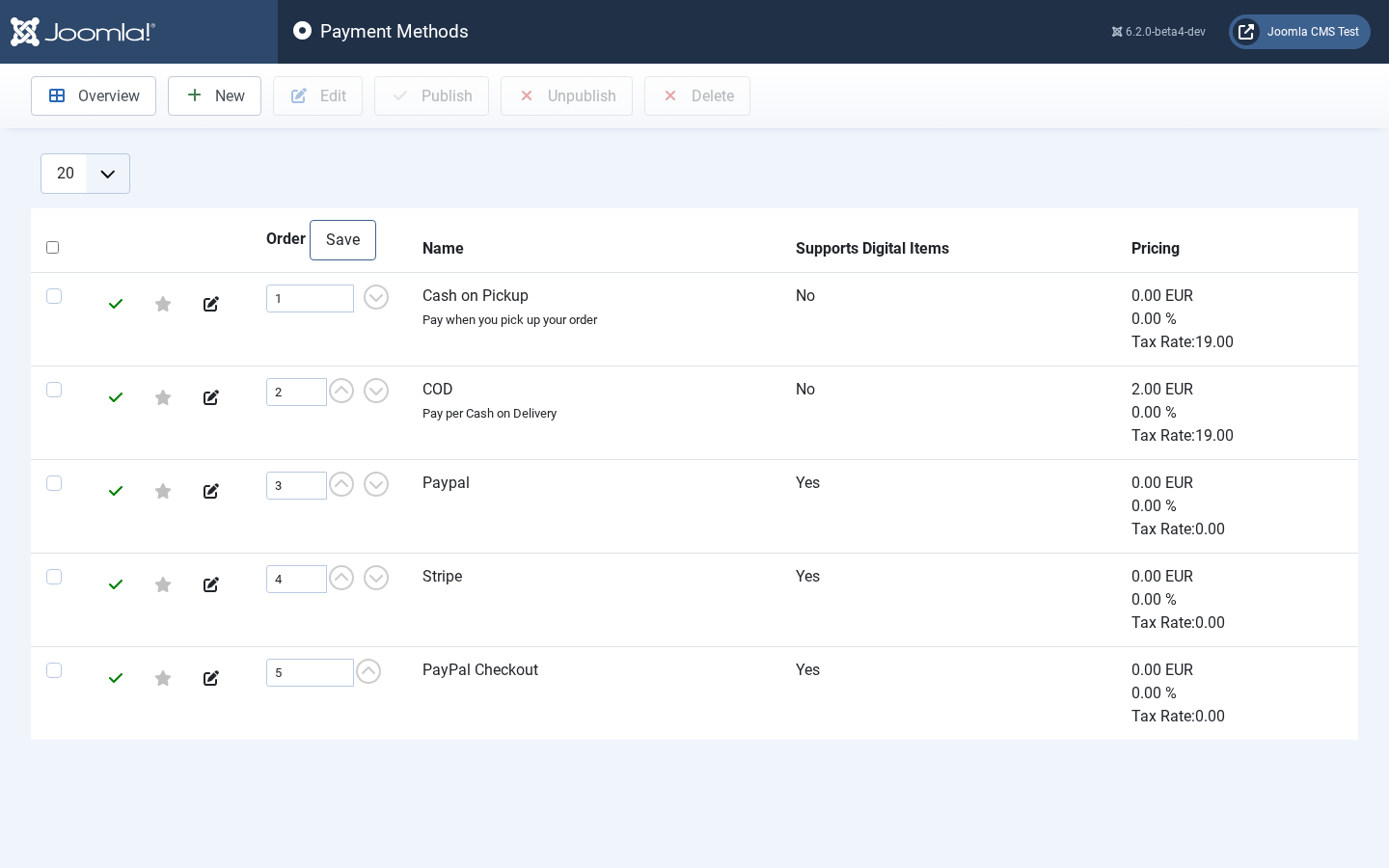
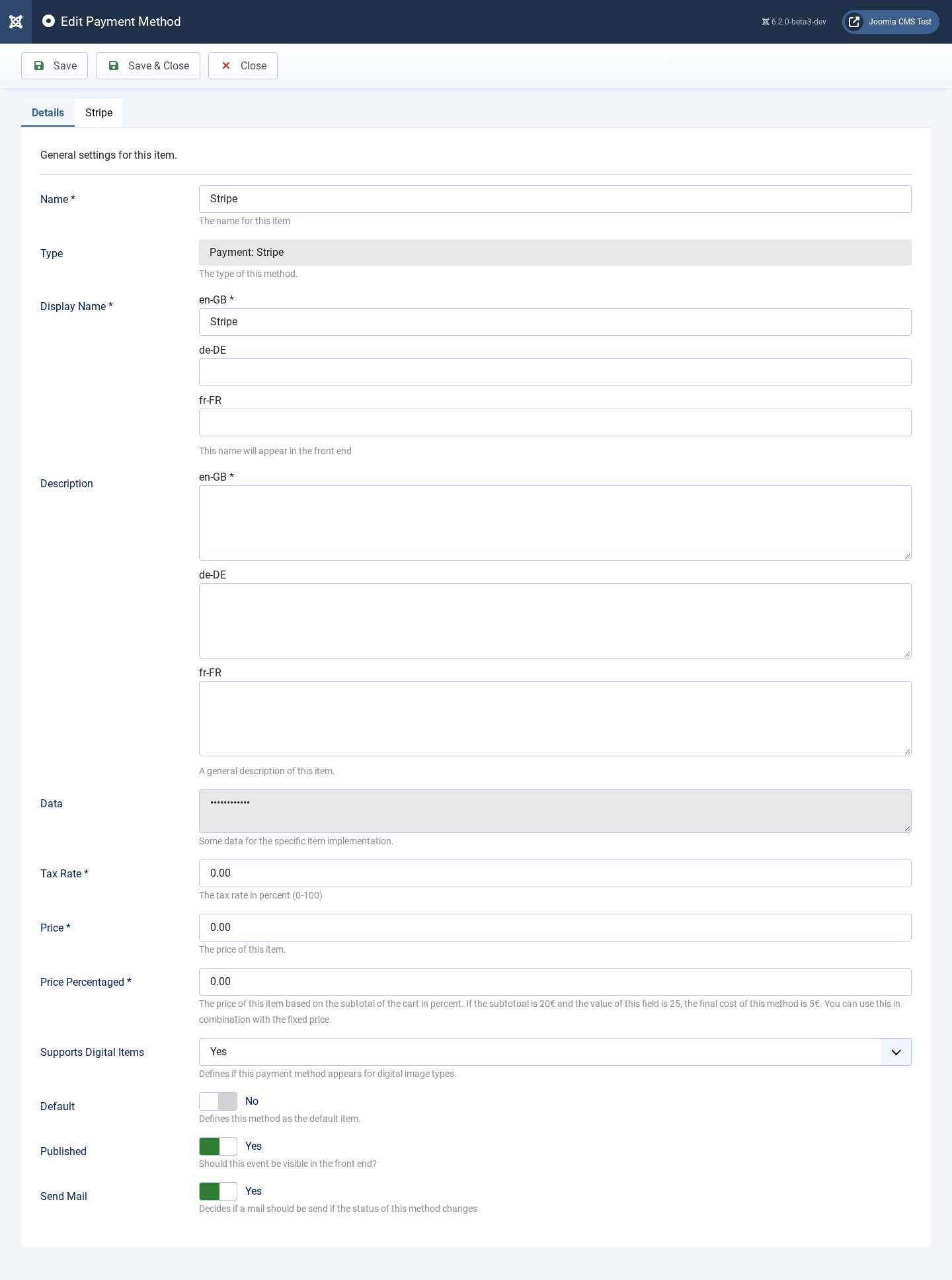
PayPal Checkout is the payment PayPal offers today. Once a user has created an order, they get a PayPal button that they have to click in order to pay. This button is available on the order confirmation page as well as on the order tracking page. It’ll disappear once the order is marked as paid.
Clicking the button creates the order at PayPal and sends the customer to the PayPal page for it. When they come back, Event Gallery collects the money and marks the order as paid. Nothing else has to be set up: there is no notification URL to register and no webhook, because the shop asks PayPal for the result rather than waiting to be told.
This is the payment method to pick for a new shop. The older PayPal method still works but uses PayPal’s Website Payments Standard with an IPN notification. If your server cannot reach PayPal to check a notification, it asks PayPal to send the notification again later, so the order is still set to paid once the connection works.
In order to get this payment method running, you need an app in the PayPal Developer Dashboard at https://developer.paypal.com/dashboard/applications. Create an app, then copy its Client ID and its Secret. Sandbox and live have separate apps with separate credentials, so make sure the credentials you enter match the Production Mode switch.
In your PayPal account, a payment shows the order number followed by a dash and a short code as its invoice ID, for example 4711-3f9a1c2e.
The code is specific to your site, so PayPal never sees the same invoice ID twice even if several shops pay into the same account.
If something goes wrong, there will be a new entry in the log file /logs/plg_eventgallery_paypalcheckout.log.php.
Make sure you check this file since it will tell you what PayPal answered.
Fields
-
Client ID
the Client ID of your app in the PayPal Developer Dashboard
-
Client Secret
the secret of the same app
-
Production Mode
If set to production, you can start earning real money. Otherwise, the sandbox is used. Make sure you entered sandbox credentials in that case.
-
Auto redirect
If set, the customer is sent to PayPal right after the order was created instead of seeing the pay button first.
-
Send confirmation mail before the payment is completed
If you want to send the order confirmation mail after the payment is complete, use this option. By default, the mail is sent when the order is created. Setting this option to NO will result in sending the order confirmation mail if the order is marked as paid. There is no separate payment confirmation email.
-
Brand Name
The name the customer sees on the PayPal pages. Leave it empty to use the name of your PayPal account.