Event Gallery
Are you looking for Event Gallery? Jump to the information page.
Table of Contents
If you’re working only with the Joomla back end, you probably don’t need the CLI tools. For bulk data processing or for scheduled jobs, the command line interface of Event Gallery comes in handy.
Joomla offers a command-based CLI.
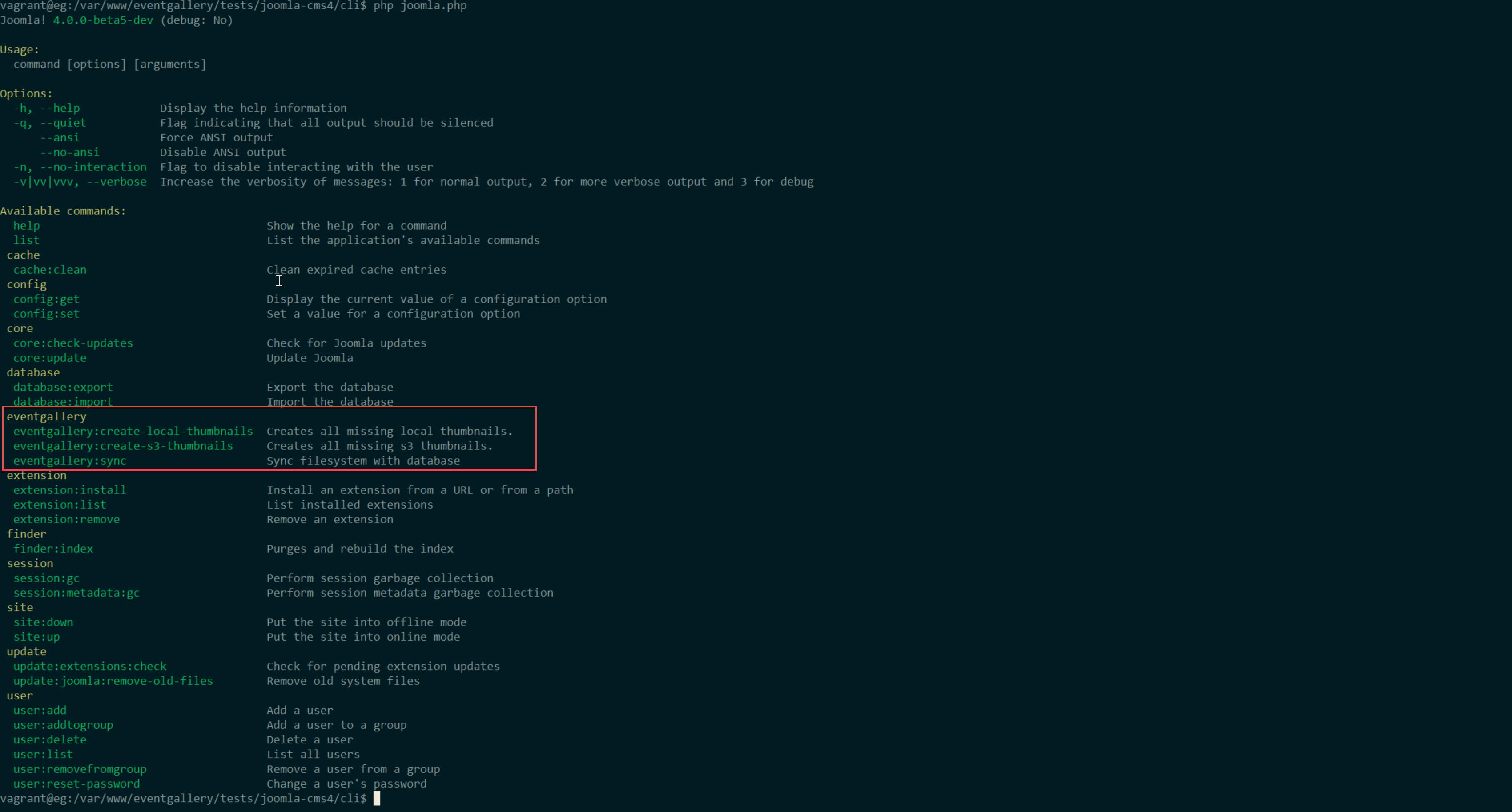
Open a shell in the root folder of your site and run php cli/joomla.php.
This will list the available commands.
The Event Gallery commands are all prefixed with eventgallery:.
To get help on a single command, use php cli/joomla.php help [the command], for example php cli/joomla.php help eventgallery:sync.
 | Note |
|---|---|
|
The commands are registered by the Event Gallery - Console Plugin.
If the |
 | Tip |
|---|---|
|
Run the commands, and the cron jobs which call them, as the user your web server runs PHP as.
Files a command creates - thumbnails, cache files, the log files in administrator/logs - belong to the user who ran it, and if that is someone else, for example |
Starts the sync of database and file system. Adds, removes and updates all files which are located in the local folders and Amazon S3 folders.
-
--publish=true(or-p=true)Publishes new events right away. The default is
false, so new events stay unpublished until you publish them yourself. -
--onlynew=true(or-o=true)Restricts the run to new events instead of walking everything that is already known. The default is
false.
Example: php cli/joomla.php eventgallery:sync --publish=true